Duration & Delay
Control animation timing by setting duration and delay for animation nodes in the timeline.
Duration controls how long an animation takes to complete. Delay controls when it starts, relative to the timeline’s origin. Both are set visually in the Timeline Editor and numerically in the Left Panel.
Location
Both values are set visually in the Timeline Editor:
- Width of a node — represents its duration. Drag the right edge of a node to make it longer or shorter.
- Horizontal position of a node — represents its delay. Drag the node body left or right to offset it from the timeline start.
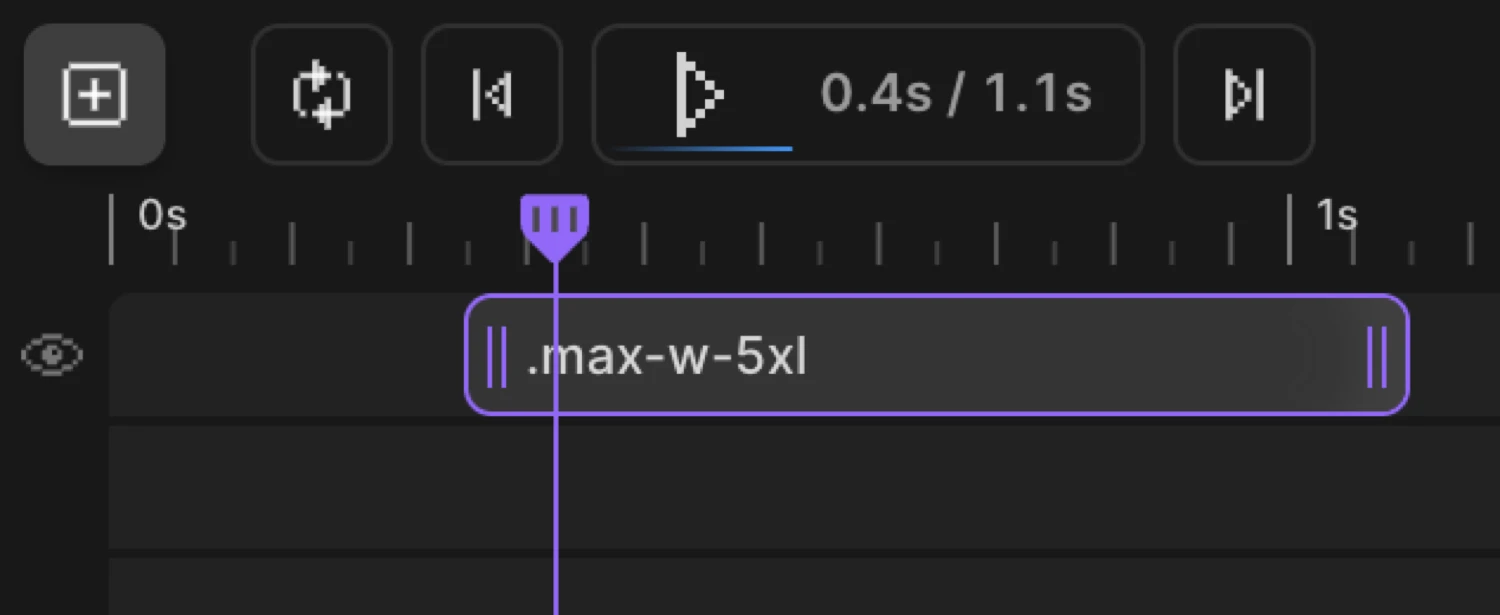
Duration
Duration is the most direct lever on how an animation feels. A long duration feels deliberate and cinematic; a short one feels snappy and responsive.
Drag the right edge of any animation node in the Timeline Editor. The timeline ruler shows the current value in seconds as you drag.
Practical duration guide
| Range | Best for |
|---|---|
0.1–0.3s | Micro-interactions — button presses, tooltips, state changes |
0.3–0.5s | Quick UI transitions — menu opens, tab switches |
0.5–0.8s | Entrance animations — fades, slides, reveals on scroll |
0.8–1.5s | Hero animations, staggered reveals, page transitions |
1.5s+ | Dramatic reveals, ambient loops, background motion |
If you don’t set a duration, the animation uses the SDK default of 0.5 seconds.
Delay
Delay offsets when an animation starts relative to the beginning of the timeline. It is the primary tool for sequencing animations that don’t overlap — animate heading in first, then subheading, then CTA.
Drag the node body horizontally in the Timeline Editor. Positioning it further right increases the delay.
Notes on delay
- Delay stacks with stagger — if an animation has both a delay and a stagger, the delay fires first and then stagger offsets each child element from that point. See Stagger for details.
Three boxes animate from the same starting state with different durations. The timing difference becomes obvious in motion.
All three boxes move the same distance — only the duration differs. The 0.3s box snaps into place; the 1.2s box drifts in slowly.
SDK equivalent
Duration and delay map directly to top-level properties in the SDK.
import { Motion } from '@motion.page/sdk';

Motion('example', '.box', {
from: { opacity: 0, y: 30 },
duration: 0.6,
delay: 0.2,
ease: 'power2.out',
}).onPageLoad();
Both accept numbers in seconds. A delay of 0.2 means the animation waits 200 ms before it begins. If omitted, duration defaults to 0.5 and delay defaults to 0.
For the full SDK reference, see Duration & Delay in the SDK.
Related
- Easing — Control acceleration and deceleration over the duration
- Stagger — Cascade timing across multiple child elements
- Repeat — Loop animations and control yoyo direction
- Duration & Delay in the SDK — Full SDK reference with all options