Selecting Elements
Choose animation targets — click-to-select, CSS selectors, multiple selectors.
The selector tells Motion.page which DOM elements to animate. You can pick targets interactively by clicking in the preview, or type any valid CSS selector by hand.
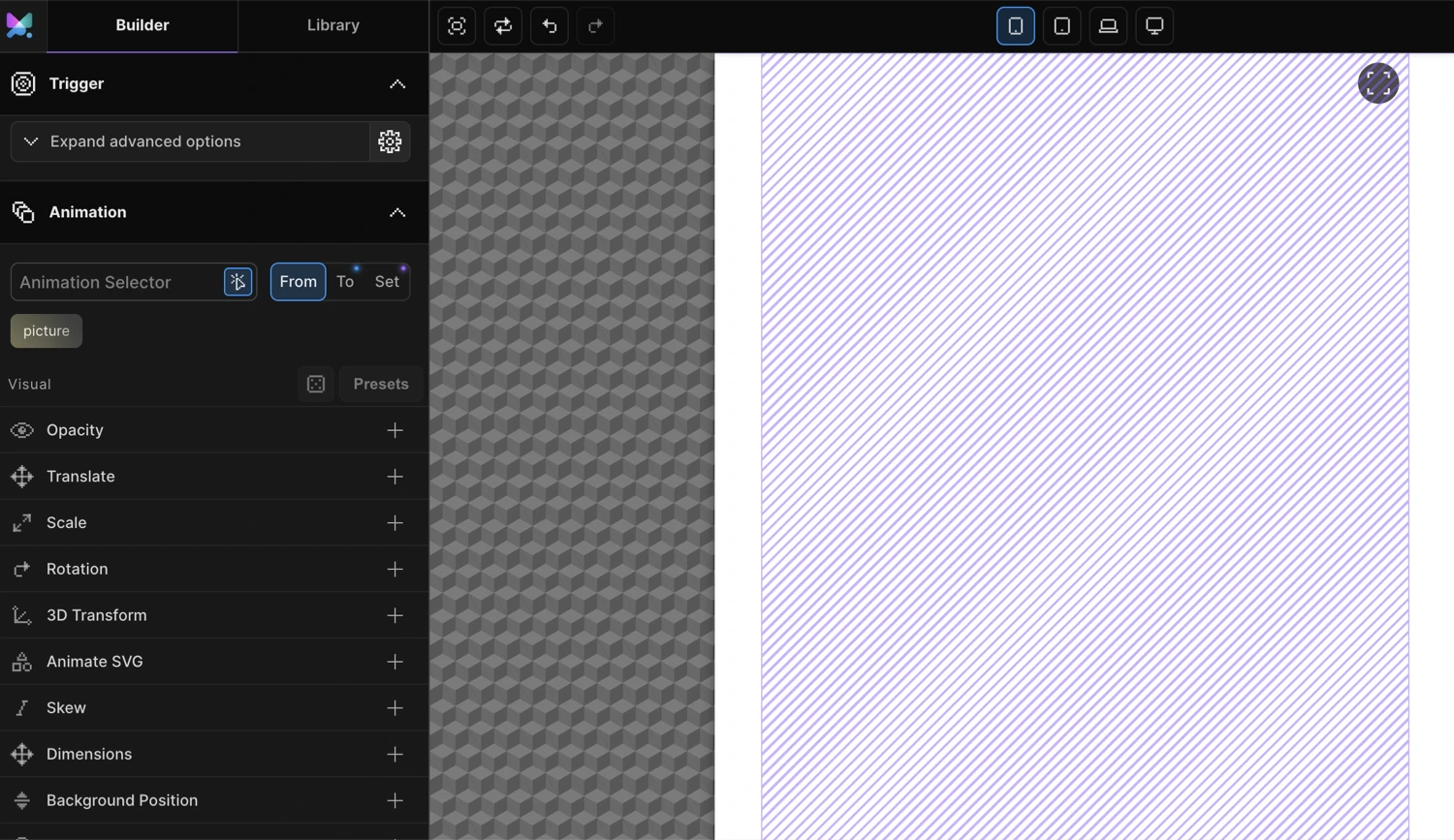
Click to Select
The fastest way to set a selector is to click directly in the Frame View.
- Click inside the selector input field in the Left Panel → Animation tab. This activates the Selector Scanner automatically (the cursor icon turns active/highlighted).
- Move your pointer into the Frame View. A translucent overlay follows your cursor, showing which element would be selected.
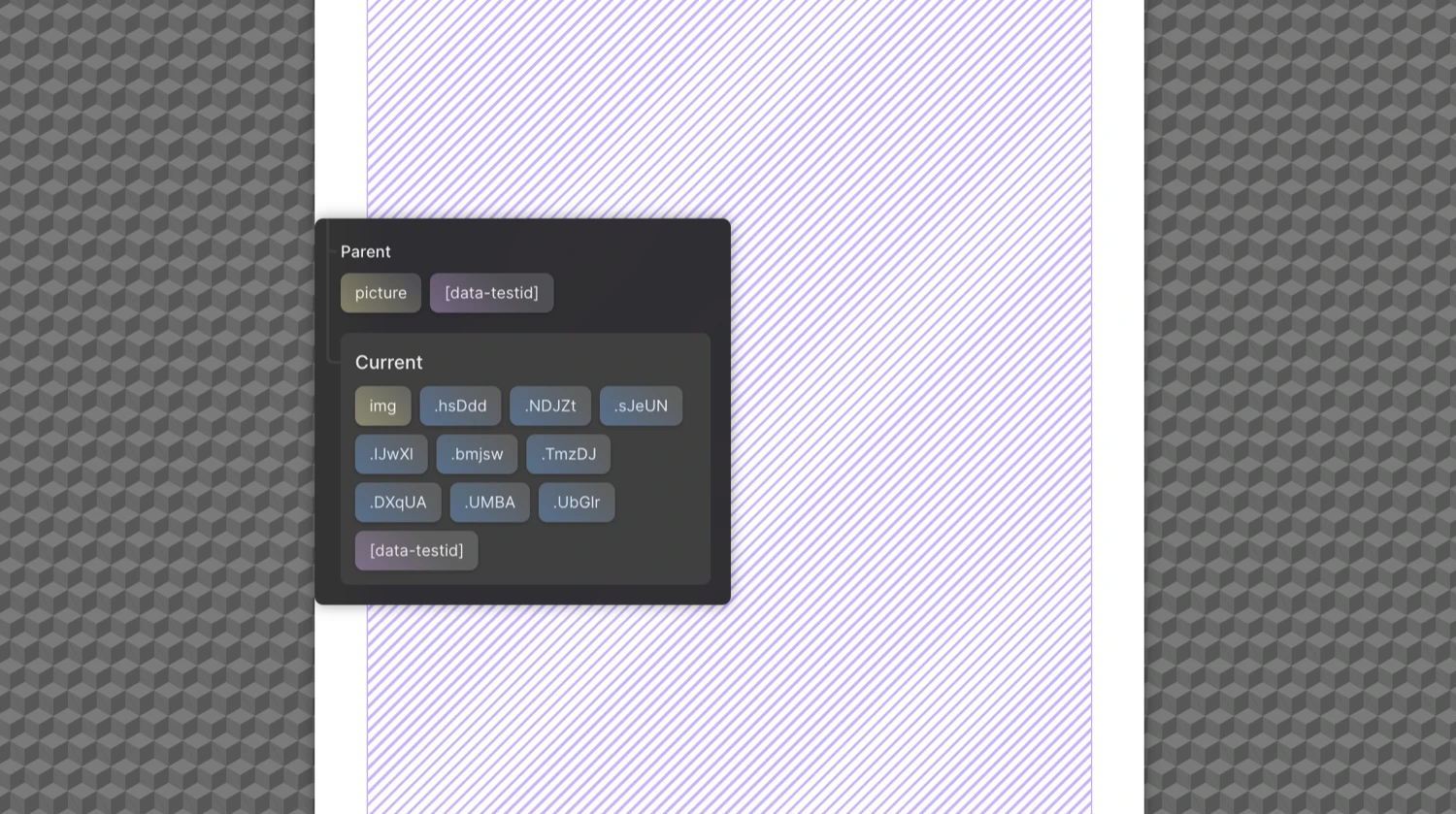
- Click the element. A popup appears listing every usable selector for that element and its parent.
- Click a selector badge to insert it into the field.
You can also toggle the scanner manually by clicking the cursor icon on the right edge of the selector input (tooltip: “Enable selector scanner”). Click it again to deactivate.
Press Escape to deactivate the Selector Scanner and return focus to the builder without inserting a selector.
Reading the popup
When you click an element, the popup shows two rows:
| Row | What it shows |
|---|---|
| Parent | Selectors for the clicked element’s direct parent — tag name, ID, classes, data attributes |
| Current | Selectors for the clicked element itself — tag name, ID, classes, data attributes |
Each badge represents one selector option. Hover a badge to preview which element it highlights on the page. Click the badge to use it.
For SVG elements, the popup also surfaces container-scoped selectors like #parent-id svg and .parent-class svg, plus individual shape sub-selectors (path, rect, circle, etc.) if the SVG contains them.
Manual Selector Input
Type any valid CSS selector directly into the Animation Selector field and press Enter to add it.
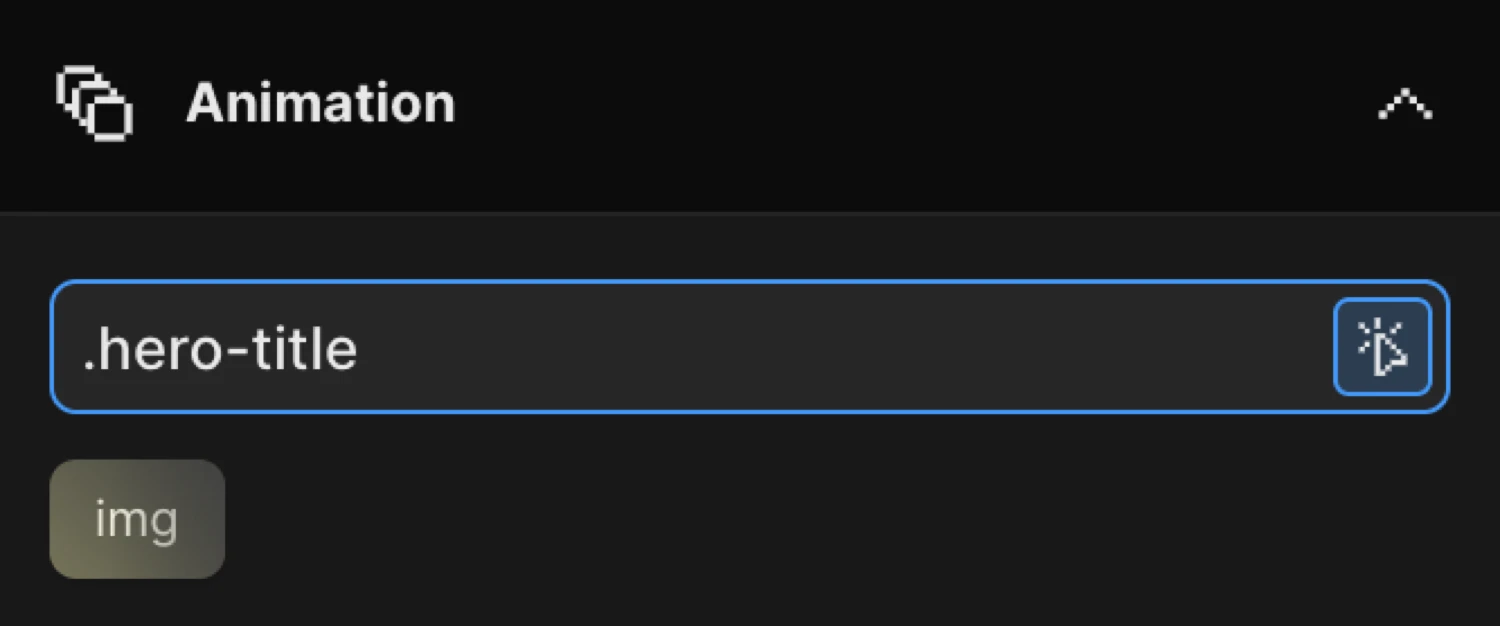
The field accepts:
/* Class */
.hero-title

/* ID */
#section-header

/* Attribute */
[data-animate]

/* Tag */
h1

/* Descendant */
.card-grid .card

/* Child combinator */
.nav > a

/* Comma-separated — targets both elements in one selector */
.heading, .subheading
Motion.page validates the selector before adding it. If the value is not a valid CSS selector, the field turns red and shows an error toast — nothing is inserted.
A selector that is valid CSS may still match zero elements on the current page. Motion.page warns you when a selector does not exist in the preview iframe so you can catch typos early.
Multiple Selectors
You can animate multiple independent targets from a single animation node by adding more than one selector. Each one becomes a separate badge displayed below the input.
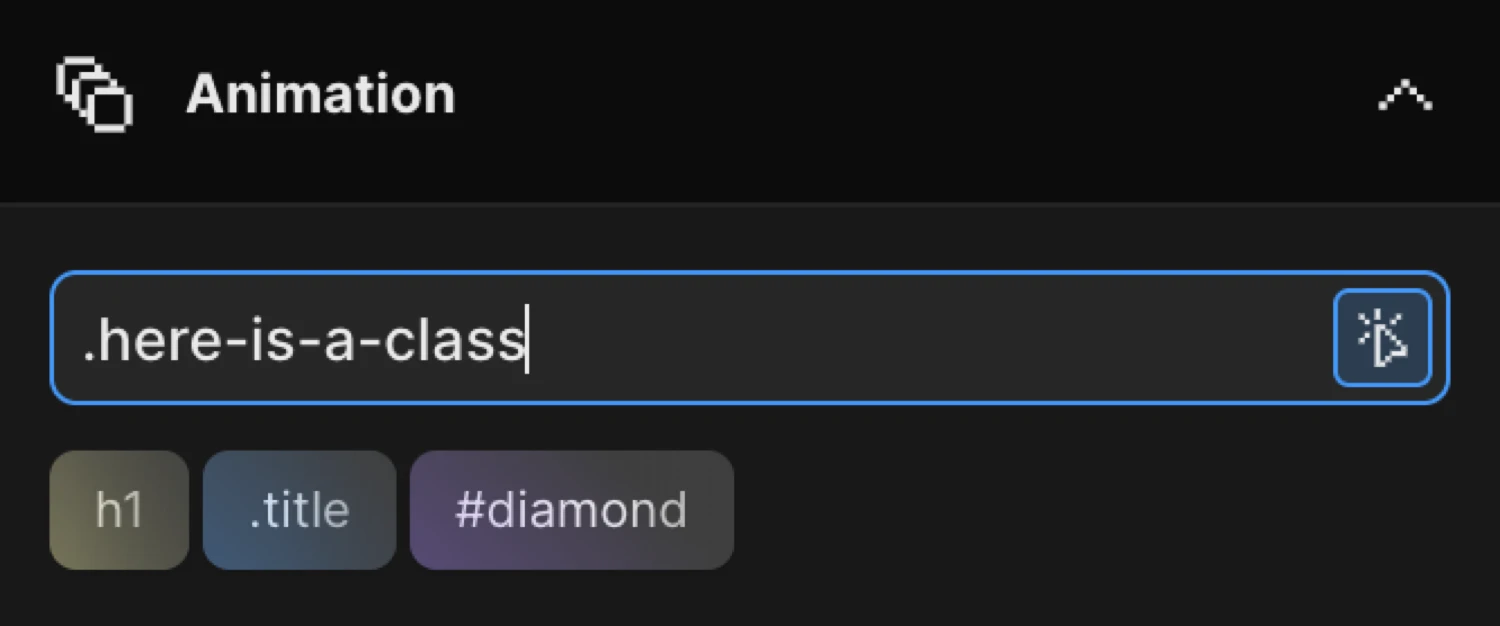
To add another selector, click the input field, type the selector, and press Enter. Repeat for each target.
Every element that matches any badge is animated by the same node. This is equivalent to passing a comma-separated selector in CSS — all matched elements animate together, at the same time, with the same properties.
To remove a badge: click it. The selector is removed and the animation updates immediately.
To edit a badge: right-click it to open the context menu.
Badge context menu
| Option | What it does |
|---|---|
| Edit | Moves the selector back into the input field for editing |
| Original state | Strips combinators and pseudo-classes, leaving the bare class or ID |
> * | Appends a child wildcard — targets all direct children of the selector |
+ * | Appends an adjacent sibling combinator |
img | Appends img — targets images inside the selector |
| Convert → tag / id / class | Converts the selector prefix between tag name, #id, and .class |
How the Scanner Generates Selectors
When the Selector Scanner inspects an element, it reads attributes directly from the live DOM and builds selector options in this priority order:
- ID —
#element-id(if the element has anidattribute and the ID starts with a letter) - Classes —
.class-namefor each class in the element’sclassList - Data attributes —
[data-name]for eachdata-*attribute present
Framework-internal attributes are filtered out automatically and never offered as selectors. The following are always excluded:
| Excluded prefix / attribute | Reason |
|---|---|
data-flip-id, data-marker, data-word-index, data-char-index | Motion.page runtime internals |
data-split, data-scrolltrigger, data-cursor, data-mp- | Motion.page internals |
data-v- | Vue scoped-style hashes |
data-reactid | Legacy React internals |
data-emotion-, data-styled-, data-rk- | CSS-in-JS runtime classes |
If an element has no ID, no classes, and no qualifying data attributes, the scanner falls back to a tag + :nth-child selector based on the element’s position in its parent:
/* Fallback — fragile, avoid relying on these */
.parent-section > p:nth-child(3)
Best Practices
Use semantic class names
Auto-generated selectors (:nth-child, framework hashes) are fragile. If the page structure changes — an element moves, a section is reordered — the selector stops matching.
Add a descriptive class to the element in your HTML or page builder, then use that class as the selector:
<!-- Instead of relying on auto-detection -->
<div class="features-grid">
  <div class="feature-card">...</div>
</div>/* Stable — survives layout changes */
.feature-cardPrefer classes over IDs for repeated elements
IDs must be unique per page. For elements that appear multiple times (cards, list items, team members), a shared class is the right choice — the animation applies to every matching instance at once.
/* Animates every .team-member on the page */
.team-member

/* Animates only the one with id="team-member-1" */
#team-member-1
To animate each instance separately (staggered), keep the class selector and enable Stagger in the Functional properties.
Scope with parent selectors when needed
If the same class appears in multiple sections and you only want to animate one, scope with a parent:
/* Only cards inside .pricing-section */
.pricing-section .card
Avoid overly broad selectors
Broad selectors like div, p, or * match far more elements than intended and can cause unexpected animation on hidden or structural elements.
Related
- Left Panel — Full reference for the Animation tab and selector input location
- Advanced Targeting — Target by URL, post type, or regex pattern using the SDK