Scale
Scale elements with uniform or independent X/Y controls.
Scale increases or decreases the size of an element using a transform. The scaling transformation is defined by a vector — you can scale uniformly (preserving aspect ratio) or independently on each axis (stretching or squishing). Values are unitless: 1 is the element’s natural size, 0 is invisible, 2 is double size.
Location
Left Panel → Animation tab → Visual Properties → Scale
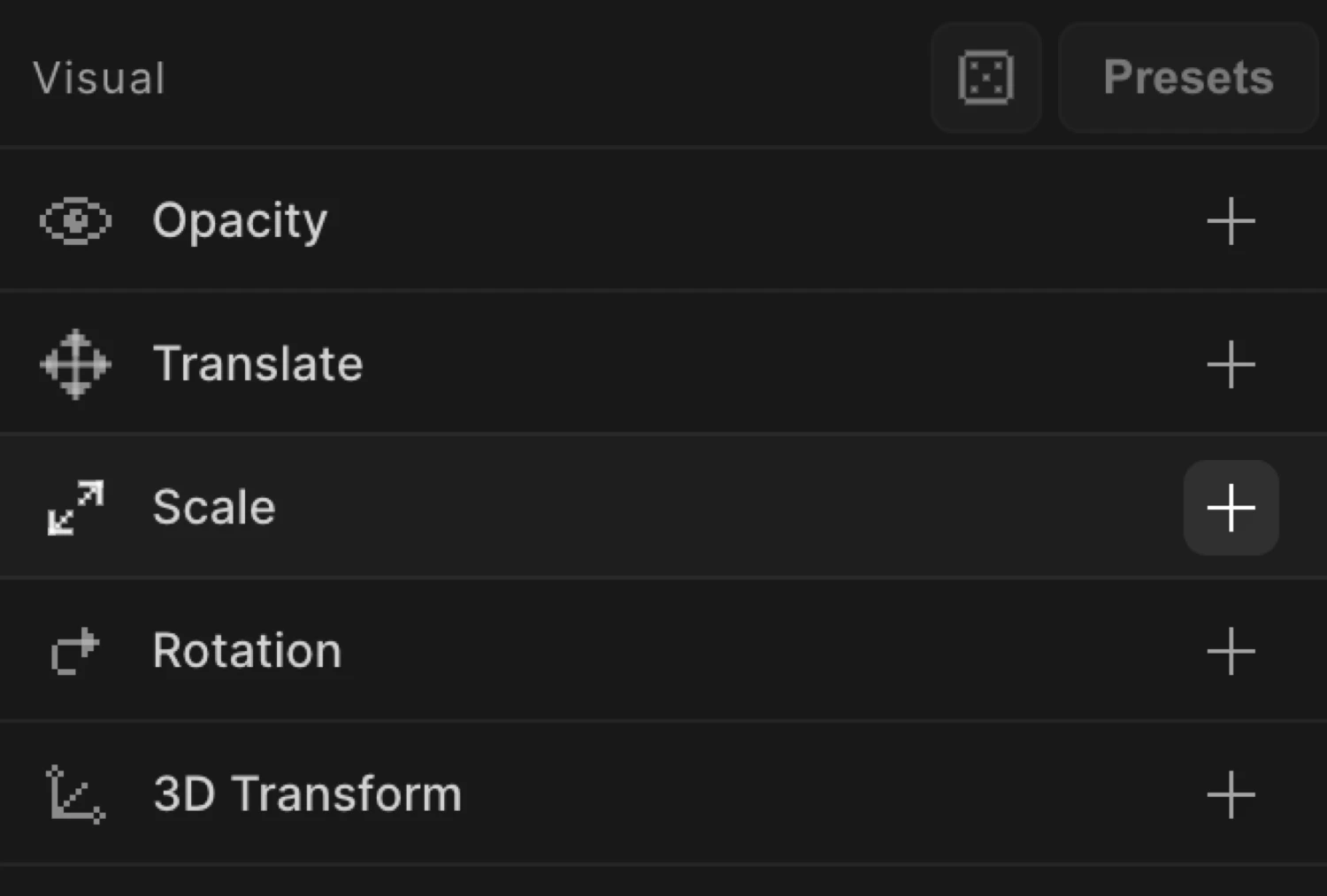
Enable Scale
Click the toggle next to Scale to enable it. The row expands to reveal the scale controls.
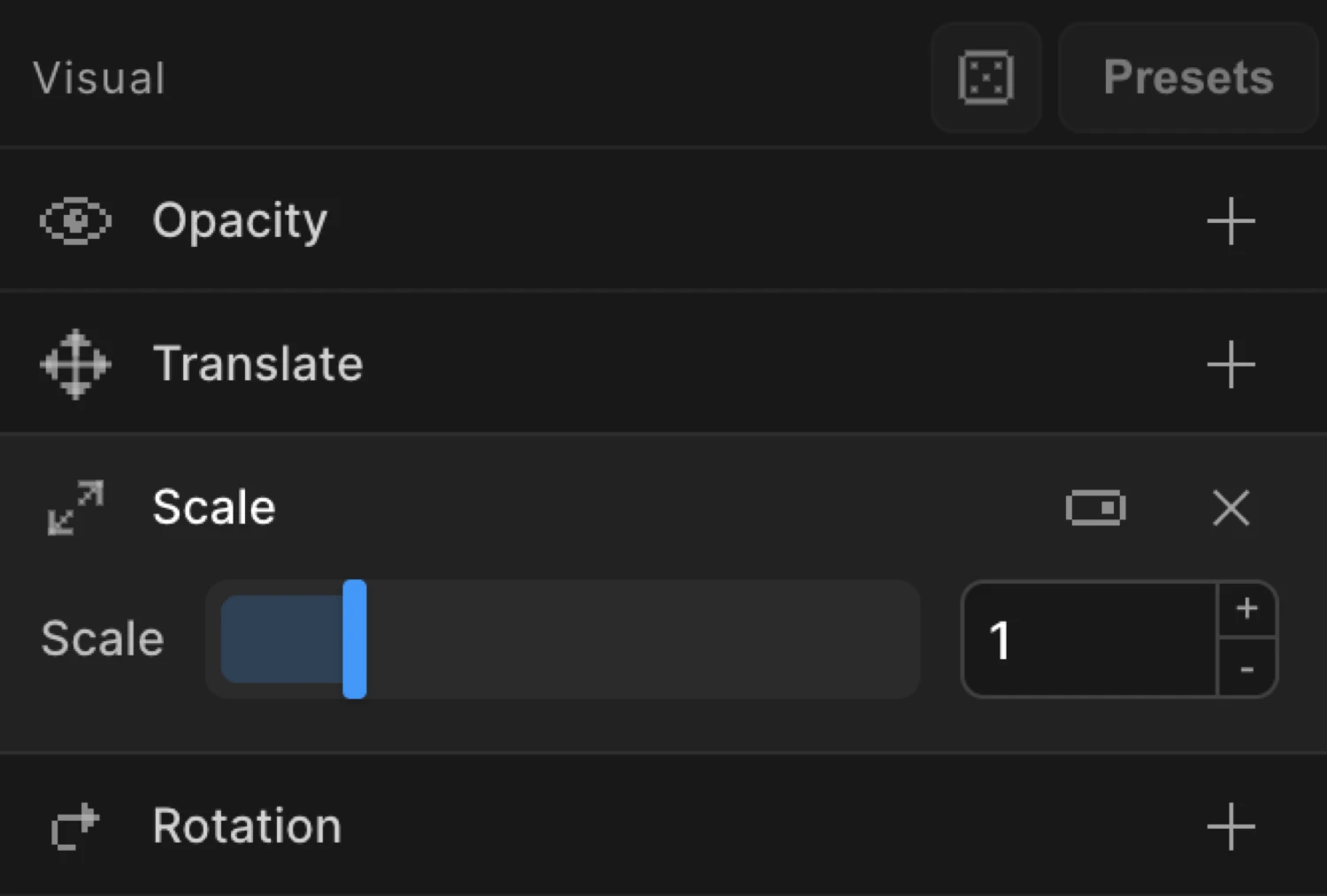
Uniform vs per-axis mode
Scale has two display modes. When the Scale row is expanded, a toggle icon appears in the row header on the right side. Click it to switch between modes.
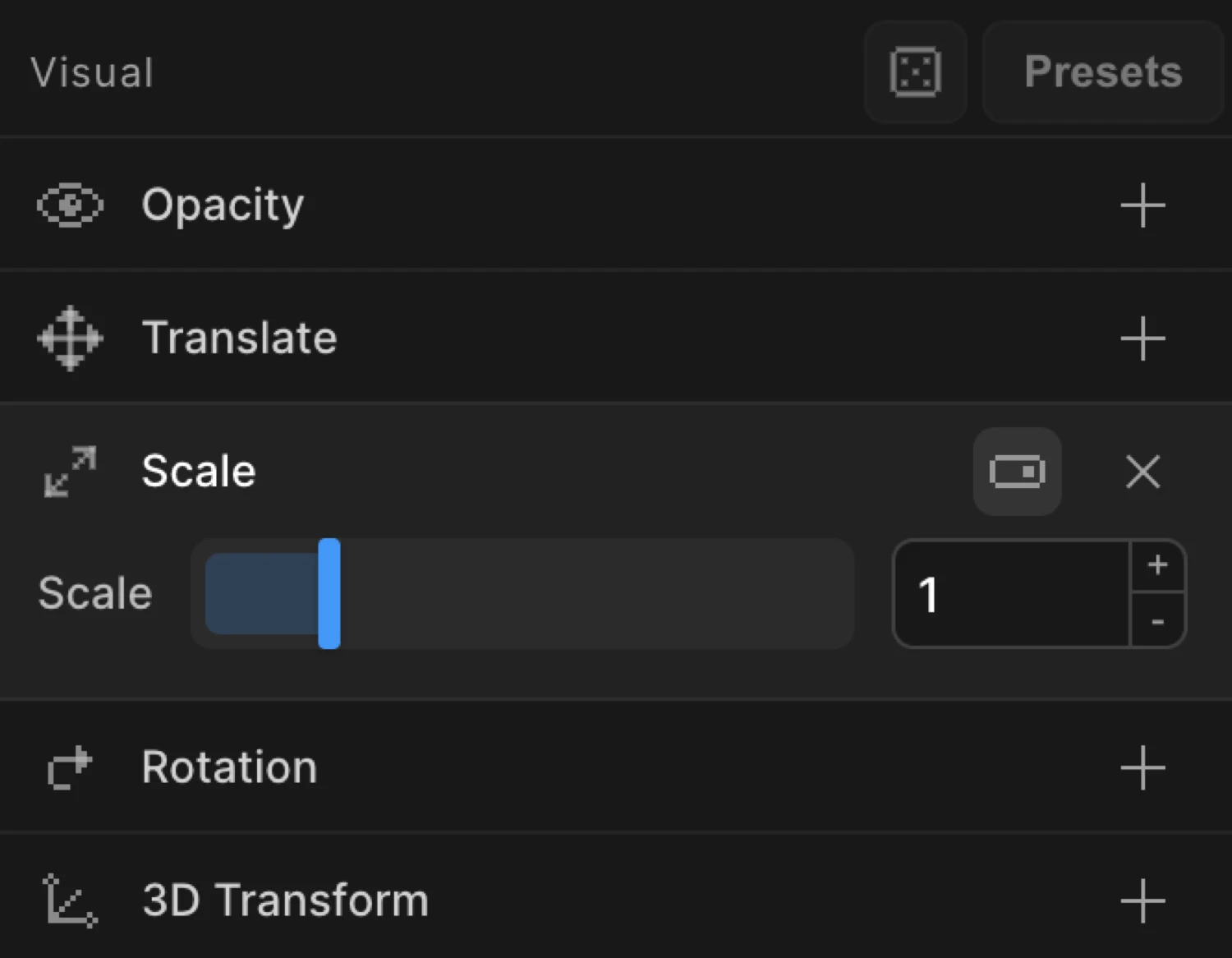
Uniform mode (default)
A single scale slider controls X and Y simultaneously. The aspect ratio of the element is preserved.
| Control | Range | Step | Description |
|---|---|---|---|
| Scale | 0 – 50 | 0.01 | Uniform scale applied to both X and Y. Drag range: 0 – 5. |
Per-axis mode
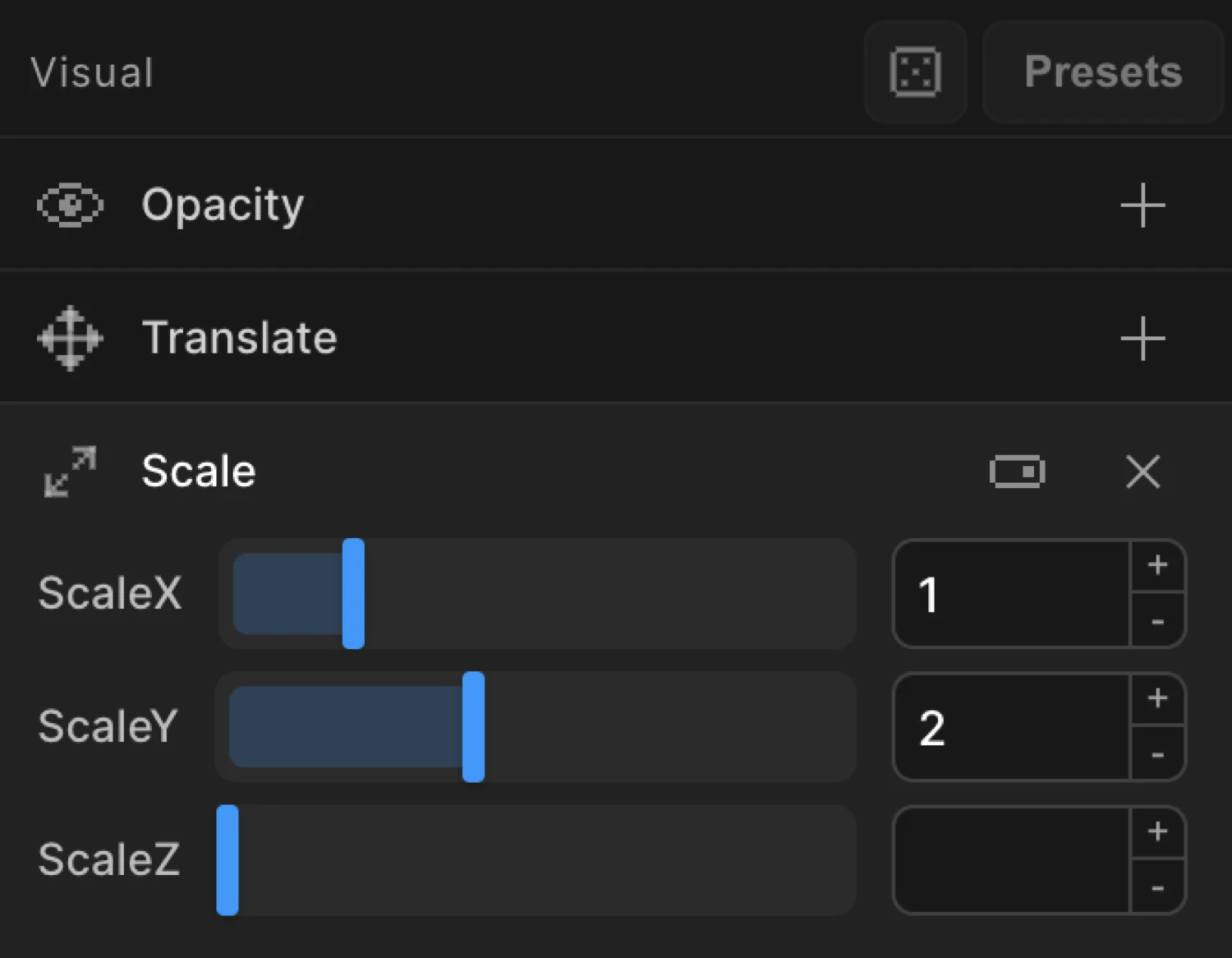
Three independent sliders appear — one each for X, Y, and Z. Use this for squish and stretch effects where the axes need different values.
| Control | Range | Step | Description |
|---|---|---|---|
| Scale X | 0 – 50 | 0.01 | Horizontal scale. |
| Scale Y | 0 – 50 | 0.01 | Vertical scale. |
| Scale Z | 0 – 50 | 0.01 | Depth scale. Requires a 3D transform context. |
Value carry-over when switching modes:
- Switching uniform → per-axis copies the
scalevalue intoscaleXandscaleY. - Switching per-axis → uniform copies
scaleX(orscaleY) back intoscale.
From mode — pop-in entrance
Switch to the From tab, enable Scale, and set the value to 0. The element starts at zero size and grows into its natural dimensions.
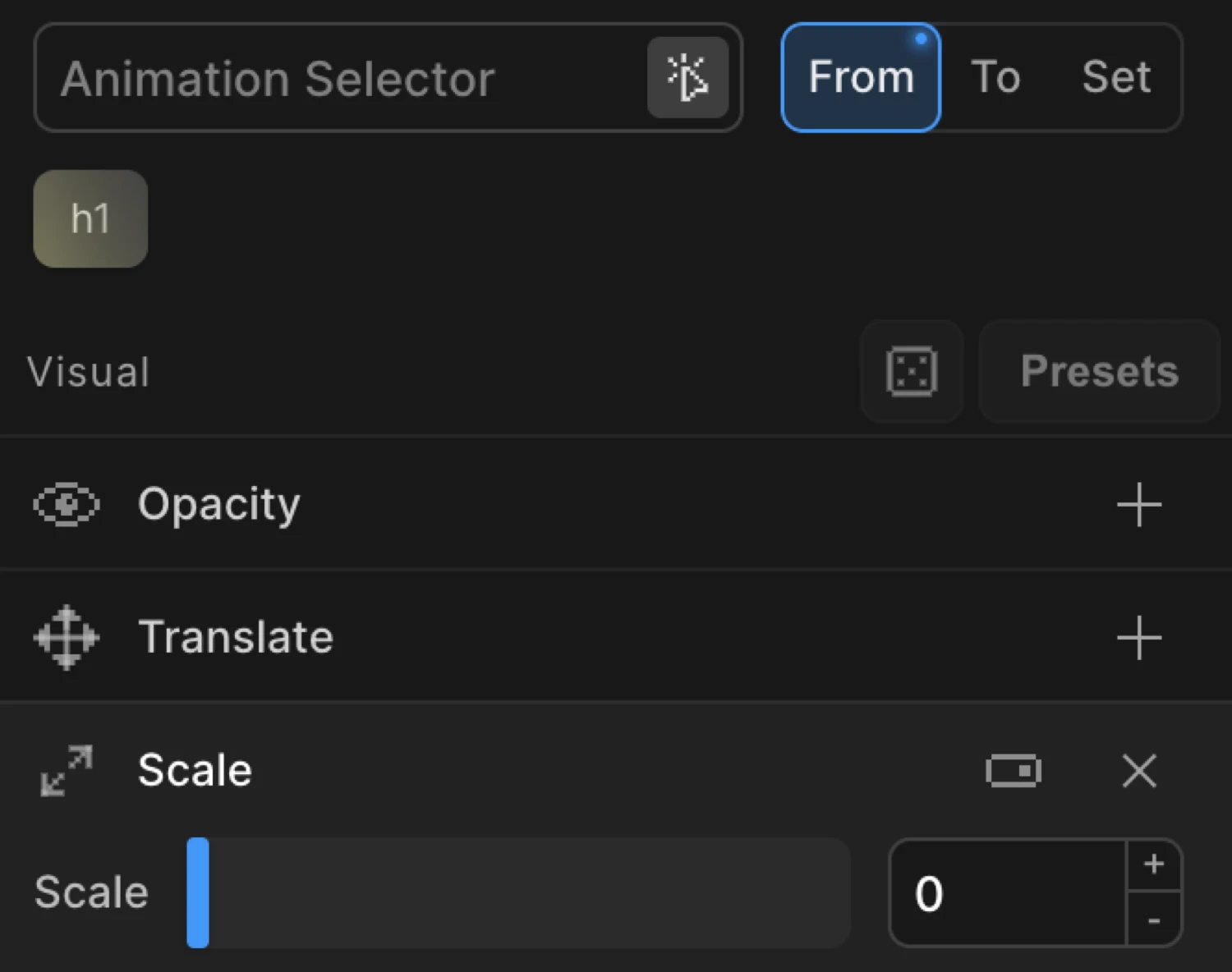
Setting scale to 0.5 instead gives a softer entry — the element is already half-size at the start, which reads as a gentle reveal rather than a hard pop.
To mode — grow and shrink effects
Switch to the To tab, enable Scale, and set the value above or below 1. The element animates from its natural size to the value you specify.
1.1— a subtle hover-grow: the element enlarges slightly on interaction1.3— a more pronounced zoom-out start for dramatic reveals0— a scale-out exit: the element shrinks to a point
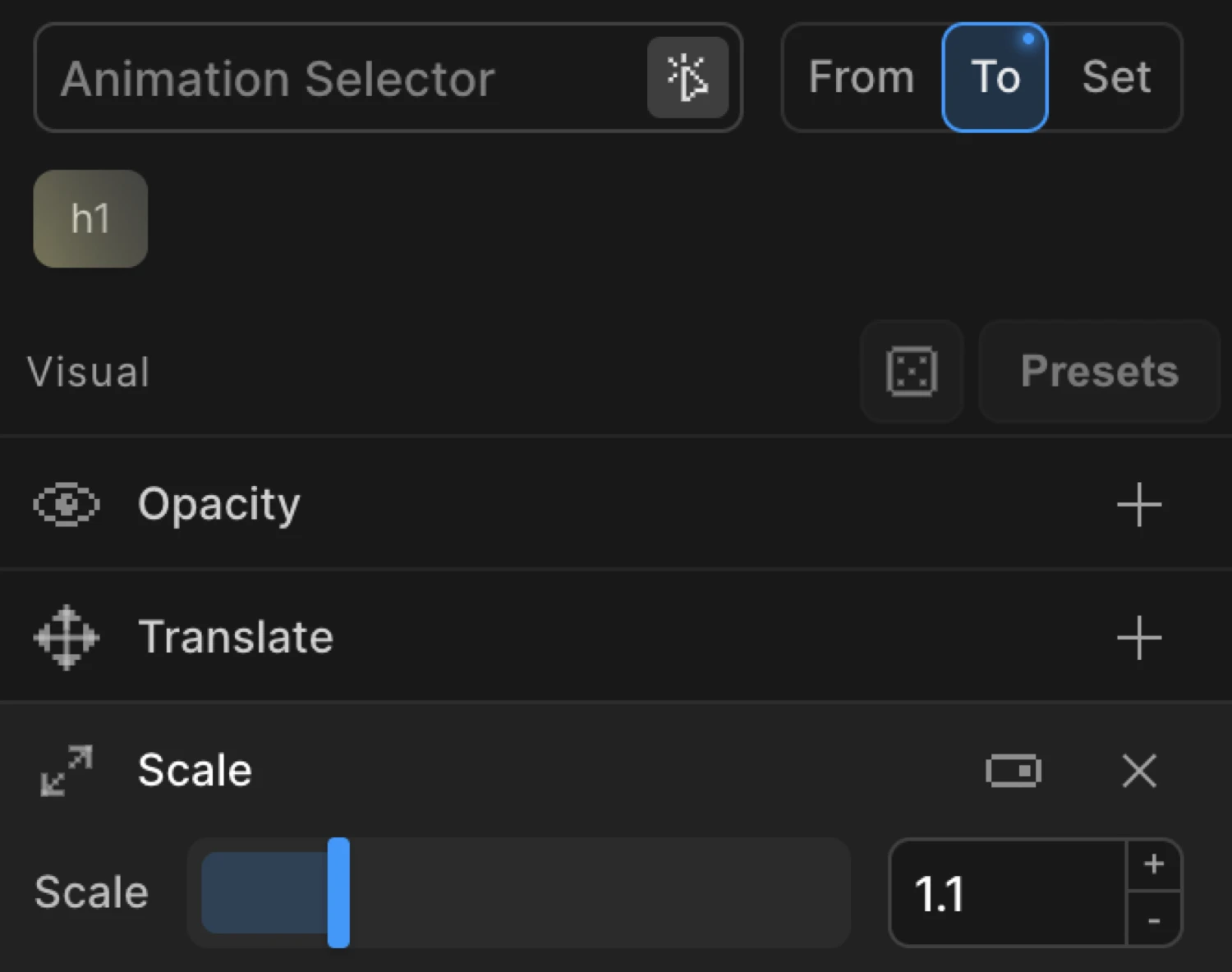
The natural default for scale is 1, so you never need to write to: { scale: 1 } when using From mode — Motion.page resolves it automatically.
The box uses from: { scale: 0, opacity: 0 } — it starts invisible and at zero size, then springs into its natural dimensions using an elastic ease.
This uses per-axis mode — to: { scaleX: 1.4, scaleY: 0.7 } — to create a squish effect. The element widens while squashing vertically, a technique from classic animation principles.
SDK equivalent
Scale maps directly to the scale, scaleX, scaleY, and scaleZ properties in the SDK. All values are unitless numbers.
Pop-in entrance (From mode):
import { Motion } from '@motion.page/sdk';

Motion('pop-in', '.card', {
  from: { scale: 0, opacity: 0 },
  duration: 0.55,
  ease: 'back.out(1.7)',
}).onPageLoad();
Soft reveal (From mode):
Motion('soft-reveal', '.hero', {
  from: { scale: 0.5, opacity: 0 },
  duration: 0.7,
  ease: 'power3.out',
}).onPageLoad();
Hover grow (To mode):
Motion('hover-grow', '.card', {
  to: { scale: 1.05 },
  duration: 0.25,
  ease: 'power2.out',
}).onHover({ each: true, onLeave: 'reverse' });
Pulse loop:
Motion('pulse', '.badge', {
  to: { scale: 1.1 },
  duration: 0.6,
  ease: 'power1.inOut',
  repeat: { yoyo: true, times: -1 },
}).onPageLoad();
Per-axis elastic jelly (To mode):
Motion('jelly', '.button', {
  to: { scaleX: 1.3, scaleY: 0.8 },
  duration: 0.4,
  ease: 'elastic.out(1, 0.4)',
  repeat: { yoyo: true, times: 1 },
}).onClick({ each: true });
Common patterns
Scale-in on scroll
Enable Scale on the From tab, set it to 0.3. Add Opacity at 0 on the same tab. Set the trigger to Scroll. Cards scale up from a small size and fade in as they enter the viewport.
Motion('card-reveal', '.card', {
  from: { scale: 0.3, opacity: 0 },
  duration: 0.6,
  ease: 'power3.out',
}).onScroll();
Zoom-in entrance
Use a From value greater than 1 — the element starts oversized and shrinks to its natural size. This creates a “zoom in from large” effect common in hero sections.
Motion('zoom-in', '.hero-image', {
  from: { scale: 1.3, opacity: 0 },
  duration: 0.8,
  ease: 'power2.out',
}).onPageLoad();
Infinite pulse
Set the trigger to Page Load, enable Scale on the To tab with a value of 1.1. Enable Repeat with Yoyo on and Times set to -1. The element pulses indefinitely.
Motion('pulse-loop', '.notification-dot', {
  to: { scale: 1.2 },
  duration: 0.7,
  ease: 'sine.inOut',
  repeat: { yoyo: true, times: -1 },
}).onPageLoad();
Per-axis squish on click
Switch Scale to per-axis mode. Set scaleX to 1.3 and scaleY to 0.8 on the To tab. Enable Repeat with Yoyo and Times set to 1. The element squishes on click then springs back.
Motion('click-squish', '.button', {
  to: { scaleX: 1.3, scaleY: 0.8 },
  duration: 0.3,
  ease: 'elastic.out(1, 0.5)',
  repeat: { yoyo: true, times: 1 },
}).onClick({ each: true });
Tips
scale: 1is the natural size — you never need to include it as atovalue when using From mode.scale: 0produces a hard pop-in;scale: 0.5gives a softer entry.- The scale origin defaults to the element’s center. To scale from a corner or edge, change the Transform Origin.
- Use an elastic or back ease with scale entrances for a natural spring feel:
ease: 'back.out(1.7)'. - Avoid very large scale values (
> 3) on text elements — raster rendering artifacts can appear on some browsers. - Per-axis mode is ideal for squash and stretch — one of the 12 principles of animation.
Related
- From, To & Set — How the three animation modes work and when to use each
- Opacity — Combine with Scale for entrance animations
- Translate — Move elements on X and Y axes
- Transform Origin — Change the anchor point for scale (and rotation)
- Ease — Control the motion curve; elastic eases pair well with scale
- Repeat — Loop or yoyo scale animations for pulse effects