Transform Origin
Set the origin point for transform animations in the builder UI.
Transform Origin sets the pivot point for transform animations — the fixed anchor from which Scale expands, Rotation spins, and Skew tilts. Changing it from the default center moves where the motion “starts” without touching the element’s position.
Location
Left Panel → Animation tab → Visual Properties → Transform Origin
Enable Transform Origin
Click the toggle next to Transform Origin to enable it. The row expands to reveal the X and Y percentage inputs alongside a visual 9-point grid. Click any dot on the grid to snap to a preset origin (corners, edges, or center), or drag the blue dot to set a custom position. The X and Y inputs update automatically as you interact with the grid.
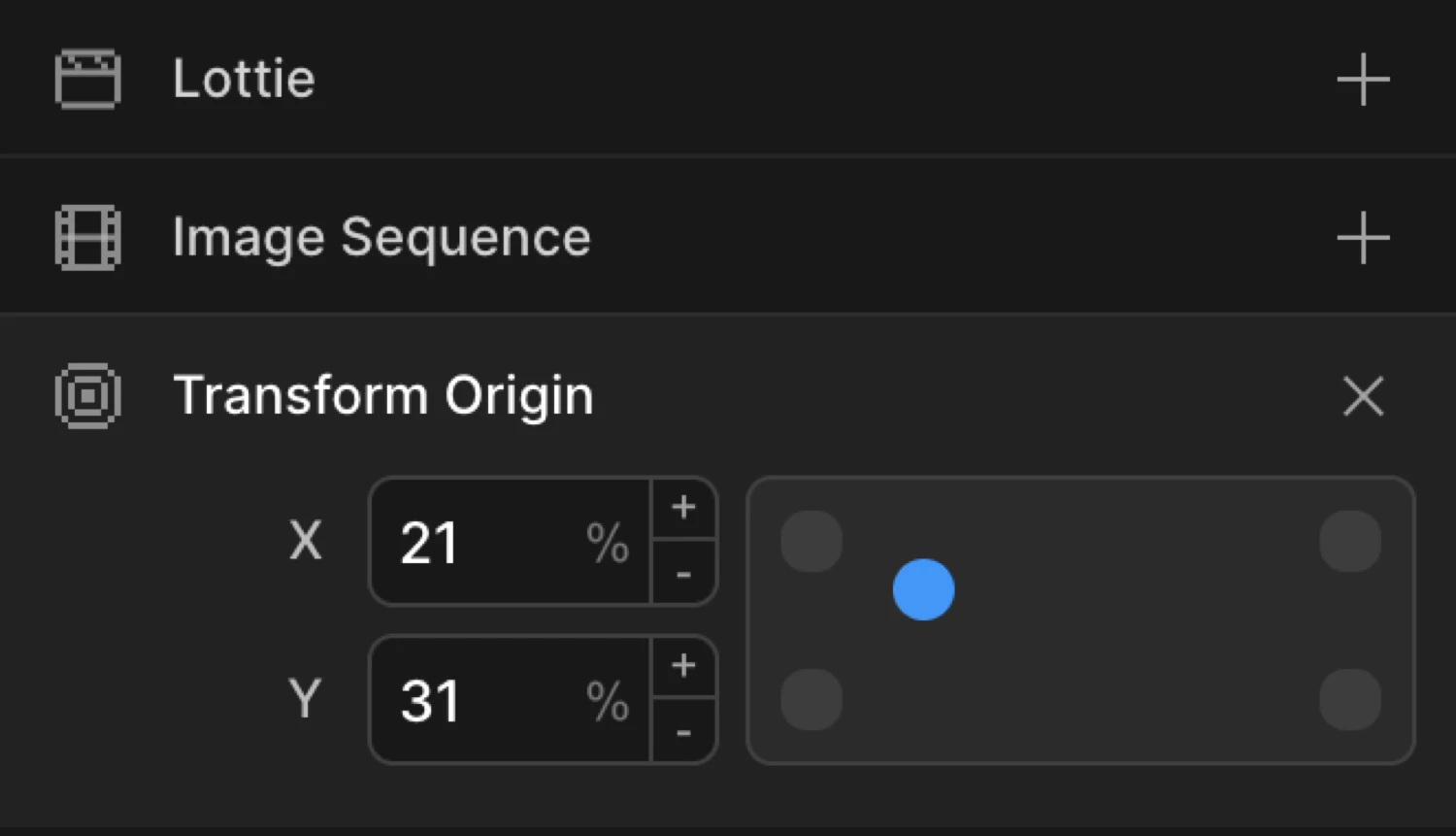
Controls
| Control | Default | Accepted values | Description |
|---|---|---|---|
| X | 50% | Keywords, percentages, lengths | Horizontal anchor point. 0% = left edge, 50% = center, 100% = right edge. |
| Y | 50% | Keywords, percentages, lengths | Vertical anchor point. 0% = top edge, 50% = center, 100% = bottom edge. |
Accepted value formats for X and Y:
- Keywords —
left,center,right(for X) andtop,center,bottom(for Y) - Percentages —
0%,25%,50%,75%,100% - Lengths —
20px,2rem,4em
Keywords and percentages are relative to the element’s own bounding box. Length values are absolute offsets from the element’s top-left corner.
How it affects transforms
Transform Origin does not animate the element itself — it changes the fixed point that other transforms revolve around:
- Scale — the element grows or shrinks outward from the origin. At
0% 100%(bottom-left), the element scales up from its bottom-left corner rather than from its center. - Rotation — the element spins around the origin. At
50% 0%(top-center), the element swings like a pendulum from the top. - Skew — the element shears away from the origin. Changing the origin shifts which part of the element stays anchored.
From mode — animate the origin itself
Transform Origin can be keyframed like any other property. Switch to the From tab, enable Transform Origin, and set a different X/Y than the CSS value on the element. The SDK interpolates the origin point itself over the animation duration.
This is useful when you want the pivot to drift during the animation — for example, a card that starts rotating from its corner and gradually shifts to rotating from its center.
To mode — shift the anchor at the end
Switch to the To tab, enable Transform Origin, and set the destination origin. The anchor moves from the element’s natural CSS transform-origin to the value you specify as the animation plays.
Both boxes rotate 180deg. The purple box uses the default transform-origin: 50% 50% (center) and spins on the spot. The orange box uses transform-origin: 0% 0% (top-left corner) and sweeps in a wide arc around its corner.
SDK equivalent
transformOrigin is a first-class property in the from, to, and set objects. Pass it as a space-separated string, matching CSS transform-origin syntax.
Rotation from top-left corner:
import { Motion } from '@motion.page/sdk';

Motion('corner-spin', '.card', {
  from: { rotation: -15, transformOrigin: '0% 0%' },
  duration: 0.7,
  ease: 'power3.out',
}).onScroll();
Scale from bottom-center (growing bar):
Motion('bar-grow', '.bar', {
  from: { scaleY: 0, transformOrigin: '50% 100%' },
  duration: 0.6,
  ease: 'power2.out',
}).onScroll();
Pendulum swing from top:
Motion('pendulum', '.badge', {
  from: { rotation: -20, transformOrigin: '50% 0%' },
  to:   { rotation:  20, transformOrigin: '50% 0%' },
  duration: 0.9,
  ease: 'sine.inOut',
  repeat: { yoyo: true, times: -1 },
}).onPageLoad();
Animating the origin itself:
// The pivot drifts from the top-left corner to the center as the element rotates
Motion('drifting-spin', '.logo', {
  from: { rotation: 0,   transformOrigin: '0% 0%' },
  to:   { rotation: 360, transformOrigin: '50% 50%' },
  duration: 1.2,
  ease: 'power2.inOut',
}).onPageLoad();
For the full SDK reference, see Transform Origin in the SDK.
Common patterns
Corner rotation reveal
Enable Rotation on the From tab (e.g. -12deg) and set Transform Origin to 0% 0%. The element swings in from its top-left corner like a door opening.
Motion('door-open', '.panel', {
  from: { rotation: -12, opacity: 0, transformOrigin: '0% 0%' },
  duration: 0.65,
  ease: 'power3.out',
}).onScroll();
Bottom-center scale (growing bar / chart column)
Enable Scale Y on the From tab and set it to 0. Set Transform Origin to 50% 100%. The element grows upward from its bottom edge — perfect for bar charts or progress indicators.
Motion('bar-rise', '.chart-bar', {
  from: { scaleY: 0, transformOrigin: '50% 100%' },
  duration: 0.5,
  ease: 'power2.out',
  stagger: 0.08,
}).onScroll();
Off-center spin
Set Transform Origin to a point outside the element (e.g. 50% 200%) and enable Rotation. The element orbits around a point below itself — a planet-around-sun motion.
Motion('orbit', '.dot', {
  to: { rotation: 360, transformOrigin: '50% 200%' },
  duration: 2,
  ease: 'none',
  repeat: { times: -1 },
}).onPageLoad();
Hover flip from edge
Set Transform Origin to 0% 50% (left edge). Enable Rotation Y on the To tab at 180deg. On hover the card flips away from its left edge. Pair with Reverse on leave to flip back.
Motion('edge-flip', '.card', {
  to: { rotationY: 180, transformOrigin: '0% 50%' },
  duration: 0.4,
  ease: 'power2.inOut',
}).onHover({ each: true, onLeave: 'reverse' });
Tips
50% 50%is always the default. You only need to set Transform Origin when you want behaviour different from center-based transforms.- Keywords (
top,left, etc.) and percentages produce identical results —leftequals0%,centerequals50%,rightequals100%. - Transform Origin is applied per-element. In a staggered group each element pivots around its own origin point — not the group’s center.
- Combining an off-canvas origin (e.g.
50% -100%) with Rotation creates orbiting effects without any position change.
Related
- Rotation — Spin elements; Transform Origin determines what they rotate around
- Scale — Grow or shrink elements; Transform Origin determines where they scale from
- Skew — Tilt elements; Transform Origin shifts which part stays anchored
- 3D Transform — Perspective and rotationX/Y/Z; Transform Origin applies to all axes
- Transform Origin in the SDK — SDK reference for the
transformOriginproperty - From, To & Set — How the three animation modes work and when to use each