Motion Path
Animate elements along SVG paths with align, auto-rotate, and range controls.
Motion Path moves any element along an SVG path during an animation. The element travels from one point on the path to another, following the exact curve you define — useful for product tours, map routes, animated icons, or any effect where straight-line movement falls short.
Animate and move any element along a SVG path.
Location
Left Panel → Animation tab → Functional Properties → Motion Path
Motion Path is a functional property — it is direction-agnostic. The same path configuration applies whether the From, To, or Set tab is active. Enabling it on any tab automatically enables it on all three.
Enable Motion Path
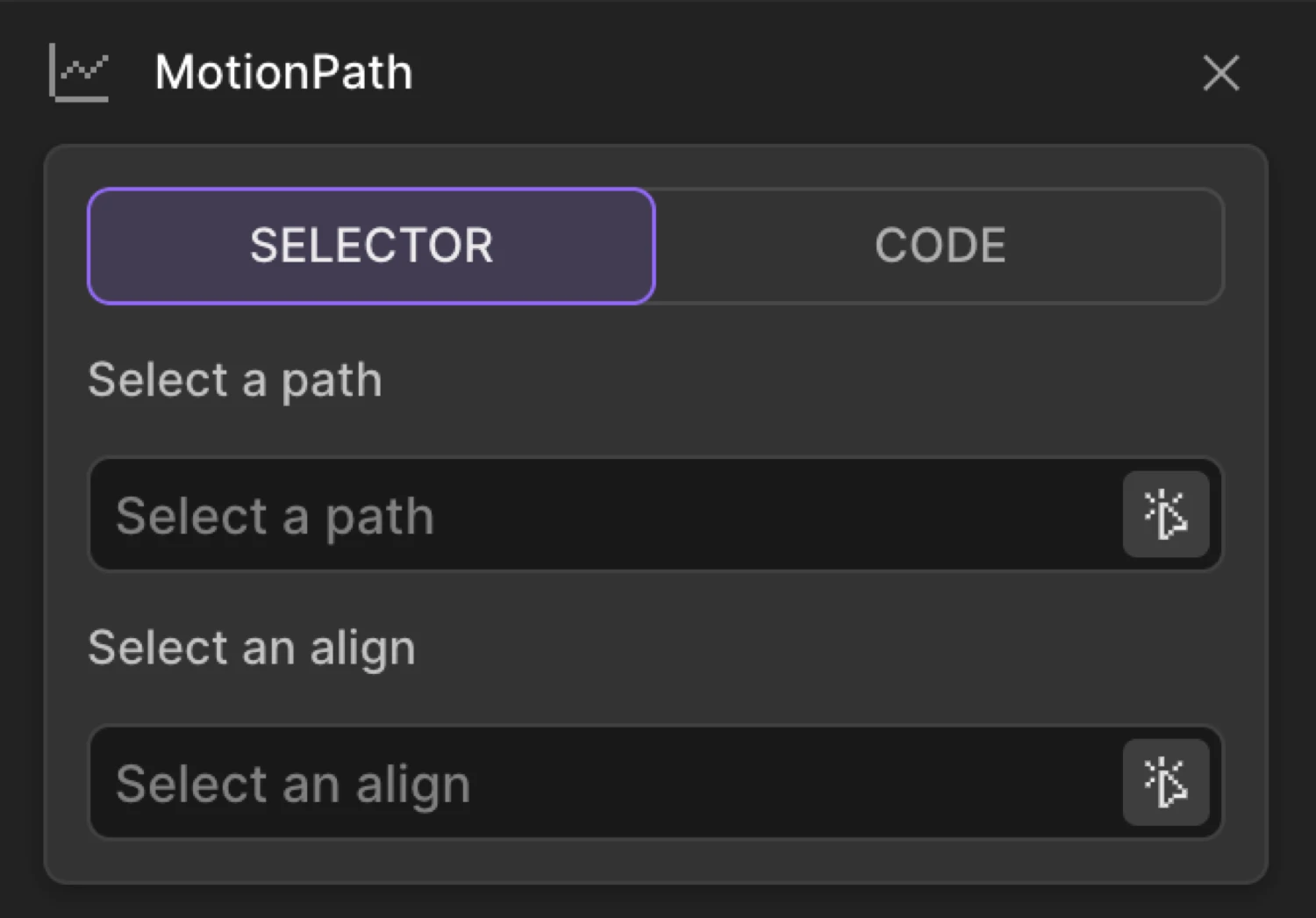
Click the toggle next to Motion Path to enable it. The row expands to reveal the mode switcher, path input, align input, Auto Rotate toggle, Range slider, and Align Origin controls.
Controls
| Control | Description |
|---|---|
| Mode | Switch between Path Selector (pick a path from the page) and Raw SVG Code (paste path data directly). |
| Path / Insert SVG path | The path source — either a CSS selector pointing to a <path> element, or raw SVG d attribute data. |
| Align | A CSS selector (or self) used to snap the target element exactly onto the path. Prevents the element from jumping to the path start position. |
| Auto Rotate | When on, the element rotates to follow the path’s direction of travel as it moves. |
| Range | Start and end positions on the path as values from 0 to 100. Restricts the animation to a portion of the full path. |
| Align Origin | The point on the target element that is placed on the path, expressed as X% and Y% from the top-left. Defaults to 50 / 50 (center). |
Path Selector mode
Path Selector mode lets you click a <path> element directly on the page to use as the motion guide.
Animate any object along the SVG path selector that is present on the page.
- Make sure the page contains an SVG
<path>element — it can be hidden with CSS (visibility: hiddenoropacity: 0), it only needs to exist in the DOM. - Click Select a path to open the element picker in the frame view and click the
<path>. - Optionally set Select an align to the same path selector (or another element /
self) to snap the target onto the path start. This eliminates the position jump that occurs when the animation begins.
Bend coordinates to position the target exactly on top of the path (or move the path to the target). You can use a selector, or ‘self’.
Raw SVG Code mode
Raw SVG Code mode lets you paste SVG path data directly — no DOM element required.
Animate any object along the raw SVG path code.
- Switch the mode toggle to CODE.
- Paste a valid SVG
dattribute value into the Insert SVG path field. The string must start withMorm, e.g.M 10 80 C 40 10, 65 10, 95 80. - Optionally set Select an align element to a CSS selector or
selfto position the target on the path.
Insert a raw SVG path code.
Bend coordinates to position the target exactly on top of the path (or move the path to the target). You can use a selector, or ‘self’.
Auto Rotate
When Auto Rotate is enabled, the target element automatically rotates to face the direction of travel along the path. The rotation tracks the path tangent at each point, so curves and corners are followed naturally.
Auto rotate makes the target rotate automatically in the direction of the path as it moves.
Turn this on for directional elements — arrows, vehicles, planes, cursors, or any element where orientation matters. Leave it off for symmetric elements like dots or circles where rotation has no visual effect.
Range
Range restricts the animation to a specific segment of the path. The start and end values are progress percentages from 0 to 100 — where 0 is the beginning of the path and 100 is the end.
Define specific start and end positions on the path (progress values from 0-100).
| Value | Meaning |
|---|---|
0 | Start of the path |
100 | End of the path |
25 → 75 | Middle half of the path only |
Use the dual-handle Range slider to drag both endpoints, or type values directly into the number inputs on either side. The default is 0 → 100 (full path). Narrowing the range is useful for multi-step sequences, progress indicators, or when a longer path needs to be shared across multiple animations.
The purple dot follows the curved SVG path from left to right — this is Motion Path in action, equivalent to Path Selector mode with a <path> element on the page. Enable Auto Rotate to have a directional element (arrow, car) turn as it moves along the curves.
SDK equivalent
Motion Path maps to the path property inside from or to in the SDK. The builder outputs a PathConfig object with the following shape:
| Property | Type | SDK default | Builder source |
|---|---|---|---|
target | string | — | CSS selector (Selector mode) or raw path data (Code mode) |
align | string | — | Align field in either mode; "self" is valid |
alignAt | [number, number] | [50, 50] | Align Origin X/Y controls |
start | number | 0 | Range start ÷ 100 |
end | number | 1 | Range end ÷ 100 |
rotate | boolean | — | Auto Rotate toggle |
Selector mode — DOM path element:
import { Motion } from '@motion.page/sdk';

Motion('follow-path', '.dot', {
  to: {
    path: {
      target: '#guide-path',
      align: '#guide-path',
      rotate: true,
    },
  },
  duration: 2,
  ease: 'power2.inOut',
}).onPageLoad();
Code mode — raw SVG path data:
Motion('draw-path', '.marker', {
  to: {
    path: {
      target: 'M 20 100 C 80 20, 160 140, 240 80 C 320 20, 360 120, 380 80',
      rotate: false,
    },
  },
  duration: 2.4,
  ease: 'power2.inOut',
}).onPageLoad();
Partial range — middle 60% of the path:
Motion('segment', '.badge', {
  to: {
    path: {
      target: '#route',
      start: 0.2,
      end: 0.8,
      rotate: true,
    },
  },
  duration: 1.5,
  ease: 'power1.inOut',
}).onScroll({ scrub: true });
For the full SDK reference — including raw path strings, "self" alignment, and scroll-scrubbing patterns — see Motion Path in the SDK.
Common patterns
Animated icon following a curve
Use a small SVG icon as the target and a hidden curved <path> as the guide. Enable Auto Rotate so the icon faces the direction of travel.
Motion('icon-curve', '.arrow-icon', {
  to: {
    path: {
      target: '#curve-guide',
      align: '#curve-guide',
      rotate: true,
    },
  },
  duration: 2,
  ease: 'power2.inOut',
}).onPageLoad();
Scroll-driven progress marker
Attach a dot or label to a path that traces a timeline or roadmap on the page. Scrub with scroll to drive it along the route.
Motion('map-marker', '.location-dot', {
  to: {
    path: {
      target: '#roadmap-path',
      align: '#roadmap-path',
      rotate: false,
    },
  },
  duration: 1,
}).onScroll({
  scrub: true,
  start: 'top center',
  end: 'bottom center',
});
Looping orbit
Set Repeat to infinite (-1) with ease: "linear" for a seamless loop around a closed path. This is ideal for satellites, badges, or decorative animated rings.
Motion('orbit', '.satellite', {
  to: {
    path: {
      target: '#orbit-ellipse',
      rotate: true,
    },
  },
  duration: 6,
  ease: 'linear',
  repeat: -1,
}).onPageLoad();
Tips
- The guide
<path>can be invisible — setfill: none; stroke: none; visibility: hiddenin CSS. It only needs to exist in the DOM for SELECTOR mode. - Code mode is layout-independent — raw path coordinates are absolute values and don’t move with the page layout. Selector mode is safer when you need the path to stay aligned with other elements.
- Use Align to eliminate jumps — without an
alignvalue, the element snaps to the path start when the animation begins. Set Align to the same selector as the path (orself) to blend in smoothly. - Auto Rotate +
alignAt— for a car icon where you want the front bumper to lead, shift Align Origin X to0so the front edge (not center) follows the path tangent. - Combine with Opacity — fade the element in at the start of a path animation with an opacity tween to avoid a sudden appearance.
- Range for multi-stage paths — draw one long path that spans the whole sequence, then assign different elements different Range segments so each covers its own portion of the route.
Related
- Motion Path in the SDK — Full SDK reference including
PathConfig, raw path strings, and scroll-scrub examples - Easing — Control acceleration along the path
- Scroll Trigger — Scrub path progress with the scrollbar
- Repeat — Loop path animations or yoyo back and forth
- SVG Animations — Animate SVG stroke draw-on and fill/stroke color
- From, To & Set — How functional properties apply across animation mode tabs