Observer / Gesture
Detect pointer, touch, wheel, and scroll gestures to drive animations with configurable axes, tolerance, and presentation mode.
The Observer / Gesture trigger detects pointer, touch, wheel, and scroll gestures to drive timeline playback. Use it for swipe-based navigation, wheel-driven animations, and full-page presentation slides — powered by the SDK’s gesture engine.
Location
Left Panel → Trigger tab → Interactions → Observer / Gesture
Select Observer / Gesture from the trigger dropdown to reveal the observer configuration panel.
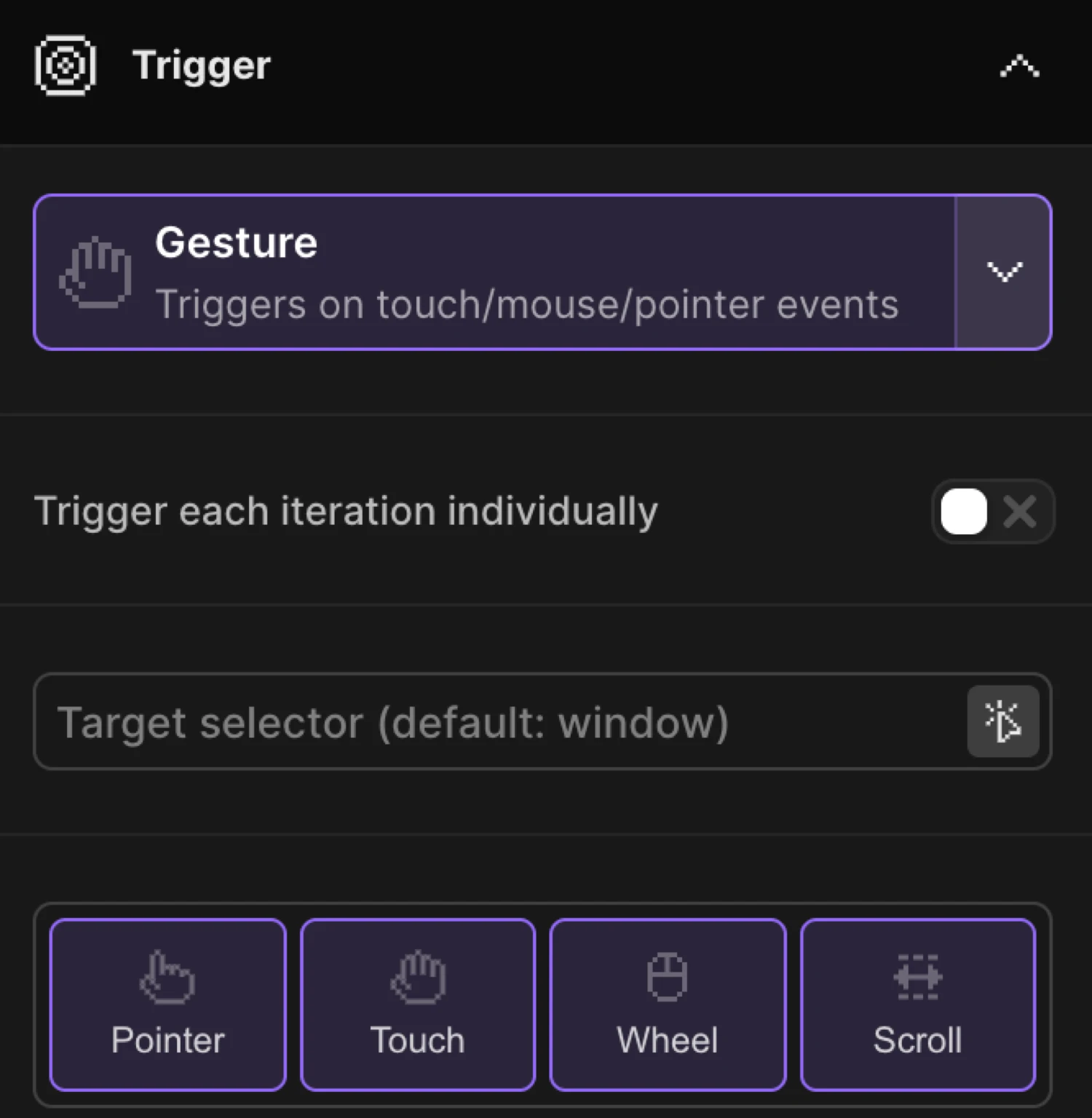
Target
The Target control defines which element is observed for incoming gestures.
The element to observe for interactions. Defaults to window for global gestures.
| Control | Default | Description |
|---|---|---|
Target selector (tObserverTarget) | (empty — window) | CSS selector for the element to observe. Leave empty to observe the browser window. Accepts .class or #id. |
When empty, gestures are detected anywhere on the page. Set a specific selector to scope gesture detection to a single container — useful for carousels, modals, or embedded scrollable panels.
Interaction types
The Types checkboxes choose which kinds of input events the observer monitors. Enable one or more.
Select which interaction types to detect: Pointer (mouse), Touch, Wheel (scroll wheel), or Scroll.
| Type | Input source | Typical use |
|---|---|---|
| Pointer | Mouse move and drag | Desktop drag gestures |
| Touch | Touchscreen swipe | Mobile swipe navigation |
| Wheel | Scroll wheel or trackpad | Wheel-driven timeline scrubbing |
| Scroll | Native scroll events | Scroll-position based gestures |
You can enable multiple types simultaneously. For example, enable both Touch and Pointer to support swipe on mobile and drag on desktop with a single animation.
Callbacks
The Callbacks section maps gesture directions and events to animation actions. Each callback can trigger a different response on the timeline.
Choose which gesture events to respond to. Each callback can trigger different animation actions.
Gesture events
| Callback | Fires when… |
|---|---|
| onUp | The gesture moves upward |
| onDown | The gesture moves downward |
| onLeft | The gesture moves to the left |
| onRight | The gesture moves to the right |
| onStop | Movement stops (after the onStop delay elapses) |
| onChange | The gesture changes in any direction |
| onClick | A tap or click is detected |
Callback action
Choose what happens when this gesture is detected: play, pause, reverse, or step through the animation.
Each enabled callback has its own action dropdown:
| Action | Effect on the timeline |
|---|---|
| Play | Plays the timeline forward from its current position |
| Pause | Pauses the timeline at its current position |
| Reverse | Plays the timeline backward |
| Step | Advances (or rewinds) the timeline by the Animation step amount |
A common pairing is onDown → Play and onUp → Reverse for a bi-directional gesture that scrubs a timeline.
Axis
The Axis control restricts gesture detection to one or both directions of movement.
Restrict gesture detection to horizontal (X), vertical (Y), or both axes (XY).
| Option | Gestures recognized |
|---|---|
| XY | Both horizontal and vertical gestures |
| X | Horizontal gestures only (left / right) |
| Y | Vertical gestures only (up / down) |
Use X for horizontal carousels, Y for vertical scroll-driven animations, and XY when you need to respond to all directions.
Sensitivity and thresholds
These controls tune how sensitive the observer is and how much timeline progress each gesture produces.
| Control | Default | Description |
|---|---|---|
Tolerance (tObserverTolerance) | 10 px | Minimum distance in pixels required before a gesture is recognized. Increase to ignore accidental micro-movements. |
Drag minimum (tObserverDragMinimum) | 0 px | Minimum drag distance before drag gestures register. Prevents unintended drags on slow pointer movements. |
Wheel speed (tObserverWheelSpeed) | 1 | Multiplier for wheel scroll sensitivity. Values above 1 make the animation react faster to wheel events; values below 1 slow it down. |
Scroll speed (tObserverScrollSpeed) | 1 | Multiplier for native scroll gesture sensitivity. Behaves the same as Wheel speed but applies to Scroll-type events. |
Animation step (tObserverAnimationStep) | 0.1 | How much of the timeline to advance per gesture when a callback uses the Step action. 0.1 = 10% of the total duration. |
Minimum distance (in pixels) required before a gesture is recognized. Helps prevent accidental triggers.
Multiplier for wheel scroll sensitivity. Higher values make animations respond faster to wheel events.
How much of the timeline to animate through per gesture (0.01 = 1%, 0.1 = 10%).
Behavior options
These toggles modify how the observer handles gestures and timing.
Prevent default browser behavior for observed gestures (e.g., page scroll on wheel events).
| Control | Default | Description |
|---|---|---|
Prevent default (tObserverPreventDefault) | off | Stops the browser’s native behavior for observed events — for example, preventing the page from scrolling when the wheel event drives an animation. Enable when the observer should fully own the gesture. |
Lock axis (tObserverLockAxis) | off | Locks gesture tracking to whichever axis moves first. Once locked, diagonal movements are ignored for the duration of that gesture. Prevents ambiguous diagonal gestures from firing both X and Y callbacks. |
onStop delay (tObserverOnStopDelay) | 0.25 s | Seconds to wait after movement stops before the onStop callback fires. Increase this to debounce rapid gesture bursts. |
Lock gestures to the initial direction of movement, preventing diagonal gestures.
Delay (in seconds) before the onStop callback fires after movement stops.
Presentation mode
Presentation mode transforms the observer into a full-page section scroller. Each element matched by the animation selector becomes a full-screen section, and gestures navigate between sections with smooth transitions — callbacks are handled automatically.
Enable full-page section scrolling like a presentation. Each target becomes a full-screen section with smooth transitions between them. Callbacks are handled automatically.
Enable the Presentation mode toggle to reveal its sub-controls.
Presentation mode controls
| Control | Default | Description |
|---|---|---|
Direction (tPresentationDirection) | Vertical | Whether sections transition vertically (up / down) or horizontally (left / right). |
Transition Duration (tPresentationDuration) | 1 s | How long each section transition animation takes. |
Gesture Cooldown (tPresentationCooldown) | 0.5 s | Minimum time between section transitions. Prevents rapid firing on sensitive trackpads or fast scroll wheels. |
Effects (tPresentationEffects) | Opacity + Translate | Visual effects applied during transitions. Choose Opacity, Translate, or both for a combined fade-and-slide. Select effects as chips — click the × to remove one. |
Infinite repeat (tInfiniteRepeat) | off | When the last section is reached, loop back to the first — and vice versa on the way back. |
Reverse gesture (tReverseGesture) | off | Flips the gesture direction mapping. When enabled, upward and leftward gestures navigate forward; downward and rightward navigate backward. |
Vertical wheel for horizontal (tUseVerticalWheel) | off | Allows vertical mouse wheel scrolling to navigate horizontal sections. Useful for desktop users who do not have a horizontal scroll wheel. |
Choose whether sections transition vertically (up/down) or horizontally (left/right).
Minimum time between section transitions. Prevents rapid triggering on sensitive trackpads.
Choose which visual effects to apply during section transitions. Select both for smooth opacity and translate animations.
When reaching the last section, loop back to the first (and vice versa).
Use standard gesture directions. When enabled, up/left gestures navigate forward, down/right navigate backward.
Enable vertical mouse wheel scrolling to navigate horizontal sections. Useful for desktop users with traditional mice.
SDK equivalent
The builder Observer / Gesture trigger maps to .observer() in the SDK.
Step through a timeline on wheel:
import { Motion } from "@motion.page/sdk";

Motion("wheel-sequence", ".slides", {
  to: { x: "-300%" },
  duration: 1,
}).observer({
  type: ["wheel"],
  callbacks: {
    onDown: "play",
    onUp: "reverse",
  },
  wheelSpeed: 1,
  axis: "y",
});
Presentation mode — full-page section scrolling:
Motion("presentation", ".section", {
  to: { opacity: 1 },
  duration: 0.6,
}).observer({
  presentation: true,
  direction: "vertical",
  duration: 0.8,
  cooldown: 0.5,
  effects: ["opacity", "translate"],
  infinite: true,
});
Swipe navigation — touch and pointer:
Motion("swipe-nav", ".card-stack", {
  to: { x: -200 },
  duration: 0.4,
  ease: "power2.out",
}).observer({
  type: ["touch", "pointer"],
  axis: "x",
  tolerance: 50,
  callbacks: {
    onLeft: "play",
    onRight: "reverse",
  },
});
For the full SDK reference see Observer / Gesture — SDK reference.
Common patterns
Full-page presentation
Enable Presentation mode with Direction: Vertical and set a Cooldown of 0.5s to prevent accidental double-steps on trackpads. Enable Infinite repeat to loop the sections endlessly. Use both Opacity and Translate effects for a polished transition.
Swipe carousel
Set Types to Touch and Pointer, Axis to X, and map onLeft → Play and onRight → Reverse in the Callbacks section. Set a Tolerance of 40–60 px so short taps do not accidentally advance the carousel.
Wheel-driven horizontal scroll
Set Types to Wheel, Axis to Y, and Animation step to 0.05. Map onDown → Step and onUp → Step (the observer automatically uses the sign of movement to advance or rewind). Enable Prevent default so the page does not scroll while the animation is active.
Gesture-controlled video scrub
Map onChange → Step with a very small Animation step (e.g. 0.005) and set both Wheel and Pointer as types. The timeline advances incrementally on every frame of movement — ideal for scrubbing a video or a frame-by-frame sprite animation.
Related
- Observer / Gesture — SDK reference — Full
.observer()API and options - Scroll Trigger — Scroll-position based animation with the SDK’s scroll engine
- Click Trigger — Trigger animations on element click
- Mouse Movement — Drive animations from cursor position