Text Splitter
Split text into chars, words, or lines for per-element animation.
Text Splitter breaks a text element into individual <span> nodes — one per character, word, or line — so each unit can animate independently. Pair it with Stagger to create cascading text reveals: words sliding in one by one, characters popping in sequence, lines rising from below a clip boundary.
Split each character, word or line into its div, and animate them one by one using Stagger.
Location
Left Panel → Animation tab → Functional Properties → Text Splitter
Text Splitter is a functional property — it is direction-agnostic. The same split applies whether the From, To, or Set tab is active. Enabling it on any tab automatically enables it on all three.
Enable Text Splitter
Click the toggle next to Text Splitter to enable it. The row expands to reveal the type dropdown, class input, Reduce White Space toggle, and Mask toggle. A live preview fires immediately in the builder so you can see the split in action.
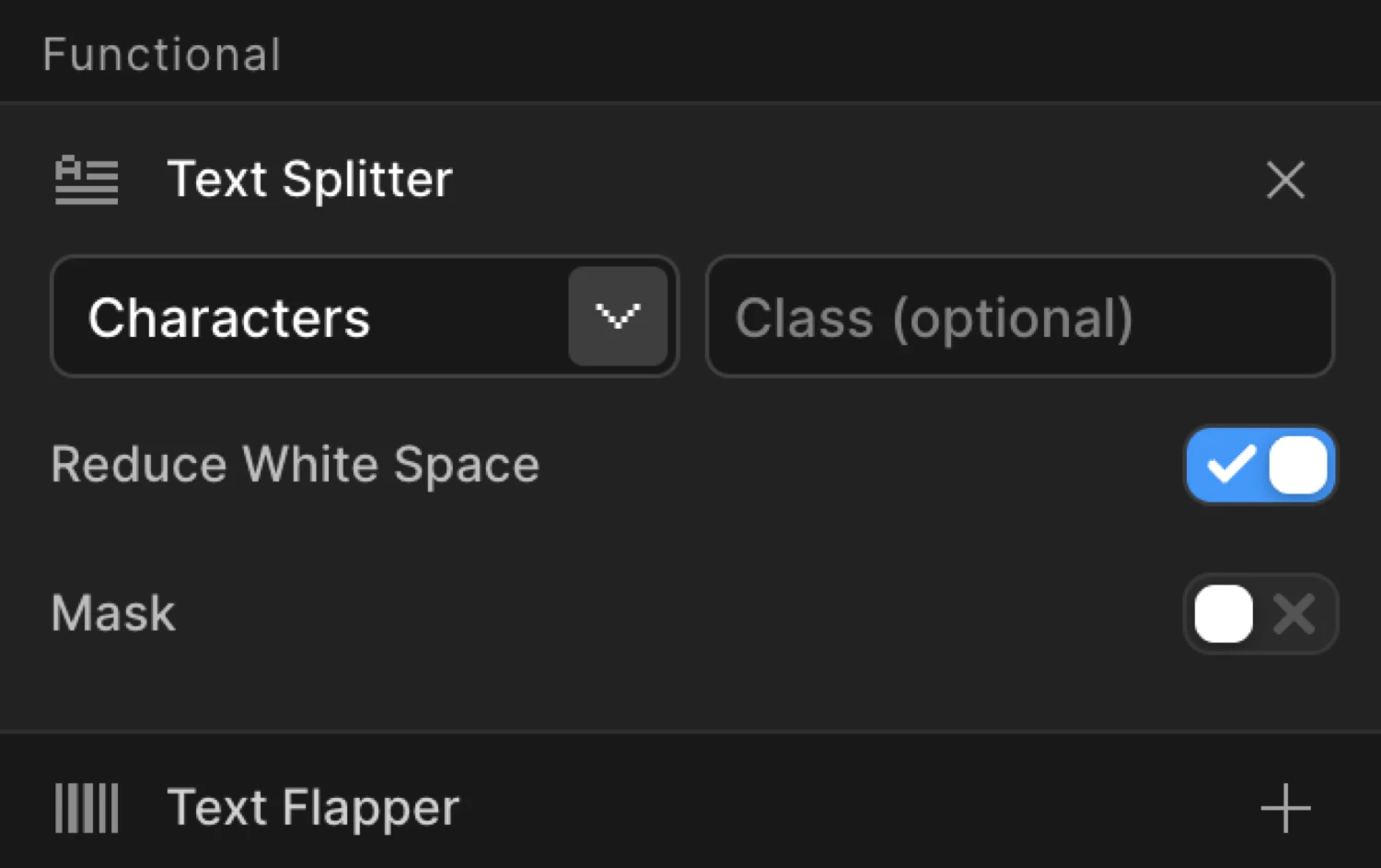
Controls
| Control | Type | Default | Description |
|---|---|---|---|
| Type | Dropdown | Characters | The unit each piece of text is split into — Characters, Words, or Lines. |
| Class | Text input | (empty) | Optional CSS class applied to every split span. Dot prefixes are stripped automatically. Append ++ to add incrementing numbers: .char1, .char2, .char3. |
| Reduce White Space | Toggle | On | Collapses extra whitespace between words for cleaner splitting. Leave on unless your layout depends on multiple spaces. |
| Mask | Toggle | Off | Wraps each split element in an overflow: hidden container for cinematic clip-reveal effects (e.g. text sliding up from behind an invisible edge). |
Split type options
| Value | Description |
|---|---|
Characters | Every character — including spaces — becomes its own animatable span. Use tight stagger values (0.02–0.05). |
Words | Each word becomes a span. Use looser stagger values (0.06–0.1). |
Lines | Each line of text (based on the element’s actual word-wrap) becomes a span. Typically needs stagger values of 0.1–0.2. |
Note on Lines: Line splitting reflects the element’s actual layout at animation time. If the container resizes, the line count changes. Test at your target breakpoint.
Mask mode
Enable Mask to wrap each split unit in an overflow: hidden container. Animate with y: "110%" on the From tab to slide each unit up from behind the invisible clip boundary — a clean newspaper-headline reveal with no extra CSS required.
The mask containers are automatically unstyled beyond overflow: hidden so they do not affect spacing or layout. Combine with any From translate offset for the reveal direction: y: "110%" for up, x: "-110%" for from the left.
Pairing with Stagger
Text Splitter works alongside Stagger, which appears directly below it in the Functional Properties list. Stagger controls the cascade — the delay between each character, word, or line entering. Without stagger, all split units animate simultaneously, which defeats the purpose.
Enable both Text Splitter and Stagger together. A typical setup:
- Type: Words
- Mask: On
- Stagger Each:
0.08 s, From:start - From tab:
y: 110%,opacity: 0
This produces each word sliding up from behind its clip boundary, left to right.
Text Splitter also re-enables Stagger when using the Interactions trigger in Click/Hover Multiple mode — normally stagger is disabled in that mode, but adding Text Splitter lifts that restriction.
Each character starts at y: 110% behind its mask container and slides up into place, left to right. This is Text Splitter set to Characters, Mask on, combined with Stagger Each: 0.04.
SDK equivalent
Text Splitter maps to the split and mask properties in the SDK config. The builder only supports single-level splits (chars, words, lines) — combined values like 'chars,words' are available in the SDK directly.
Characters with mask (From mode):
import { Motion } from '@motion.page/sdk';

Motion('headline', 'h1', {
  split: 'chars',
  mask: true,
  from: { y: '110%', opacity: 0 },
  duration: 0.48,
  stagger: { each: 0.04, from: 'start' },
  ease: 'power3.out',
}).onPageLoad();
Words slide in on scroll:
Motion('section-title', '.section-title', {
  split: 'words',
  mask: true,
  from: { y: '110%' },
  duration: 0.6,
  stagger: { each: 0.08, from: 'start' },
  ease: 'power3.out',
}).onScroll({
  each: true,
  toggleActions: 'play none none none',
  start: 'top 85%',
});
Lines fade up:
Motion('paragraph', 'p', {
  split: 'lines',
  from: { opacity: 0, y: 40 },
  duration: 0.6,
  stagger: { each: 0.15, from: 'start' },
  ease: 'power2.out',
}).onPageLoad();
For the full SDK reference, see Text Splitter in the SDK.
Common patterns
Words slide up from mask
Enable Text Splitter → Words, turn on Mask. On the From tab set y to 110%. Add Stagger → Each: 0.08, From: start.
Motion('words-mask', 'h2', {
  split: 'words',
  mask: true,
  from: { y: '110%' },
  duration: 0.6,
  stagger: { each: 0.08, from: 'start' },
  ease: 'power3.out',
}).onPageLoad();
Characters fade in randomly
Set Type to Characters, leave Mask off. On From, set opacity: 0 and y: 20. Set Stagger → Each: 0.02, From: random for an organic, shuffled entrance.
Motion('chars-random', '.display-title', {
  split: 'chars',
  from: { opacity: 0, y: 20 },
  duration: 0.4,
  stagger: { each: 0.02, from: 'random' },
  ease: 'power2.out',
}).onPageLoad();
Typewriter effect
Set Type to Characters. On the From tab, set only opacity: 0. Keep Duration very short (0.05 s) or set it to 0. Set Stagger → Each: 0.07, From: start. The characters snap in one by one at a typed cadence.
Motion('typewriter', '.terminal', {
  split: 'chars',
  from: { opacity: 0 },
  duration: 0,
  stagger: { each: 0.07, from: 'start' },
}).onPageLoad();
Lines rise on scroll
Set Type to Lines. On From, set opacity: 0 and y: 40. Set Stagger → Each: 0.15, From: start. Use a Scroll trigger so each paragraph line enters as it scrolls into view.
Motion('lines-scroll', '.body-text', {
  split: 'lines',
  from: { opacity: 0, y: 40 },
  duration: 0.6,
  stagger: { each: 0.15, from: 'start' },
  ease: 'power2.out',
}).onScroll({
  each: true,
  toggleActions: 'play none none none',
  start: 'top 80%',
});
Custom class with numbered spans
Enter a class name in the Class field — for example word. Each span receives the class word. Append ++ to the name (word++) to produce word1, word2, word3, and so on — useful for targeting individual splits in CSS.
/* Target spans with the numbered class pattern */
.word1 { color: #6633EE; }
.word2 { color: #aa88ff; }
Tips
- Apply Text Splitter to text elements only —
h1–h6,p,span,li,a, and similar inline/block text containers. Applying it to layout wrappers (e.g.section,divwith mixed content) may produce unexpected results. - Stagger is required for visible sequencing. Without Stagger, every split unit animates at exactly the same time.
- Lines are layout-sensitive. If the window resizes between page load and animation, line boundaries may differ from when the split was computed. Use the SDK’s
onResizeoption to recompute on resize when line splitting is critical. - Mask +
y: "110%"is the gold standard for text reveal. The110%ensures the starting position fully clears the clip boundary even with sub-pixel rounding. - Text Reveals presets in the Animation Presets panel include 20 ready-made Text Splitter animations — a fast starting point for characters, words, and lines.
Related
- Stagger — Control the cascade delay between split units
- Animation Presets — 20 ready-made Text Reveals presets using Text Splitter
- From, To & Set — How functional properties apply across animation mode tabs
- Translate — Set
yoffset values used in Text Splitter reveals - Opacity — Often combined with Text Splitter for fade reveals
- Text Splitter in the SDK — Full SDK reference including combined split values