Skew
Apply skew distortion to elements on the 2D plane.
Skew distorts an element by tilting it along the horizontal and vertical axes — a shear mapping (transvection) that shifts each point within the element by a given angle. It is the right tool for diagonal reveals, perspective hints, and motion-design flourishes where a straight element feels too flat.
Where to find it
Left Panel → Animation tab → Skew
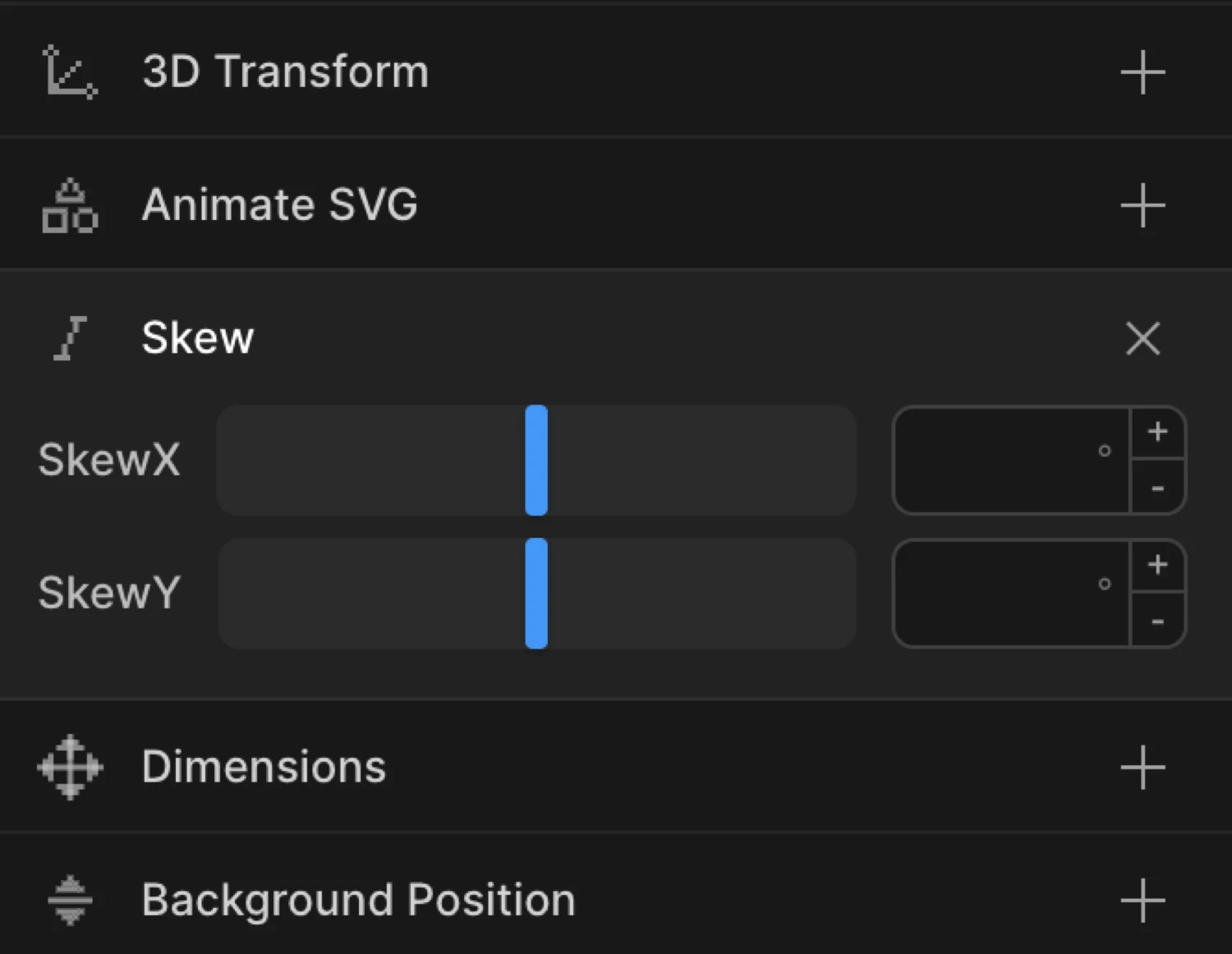
Enable the Skew toggle to expand the controls. Two numeric inputs appear — skewX and skewY — each accepting degree values.
Controls
| Control | Description |
|---|---|
| skewX | Horizontal shear angle in degrees. Positive values tilt the element’s top edge to the right; negative values tilt it to the left. |
| skewY | Vertical shear angle in degrees. Positive values tilt the element’s left edge downward; negative values tilt it upward. |
Both inputs accept any numeric degree value. Typical working range is −45 to 45 — values beyond that produce extreme distortions. Double-click an input to clear it.
From mode — skewed entrance
In From mode, the values you set are the starting distortion. The element animates from that skewed state toward its natural, undistorted shape.
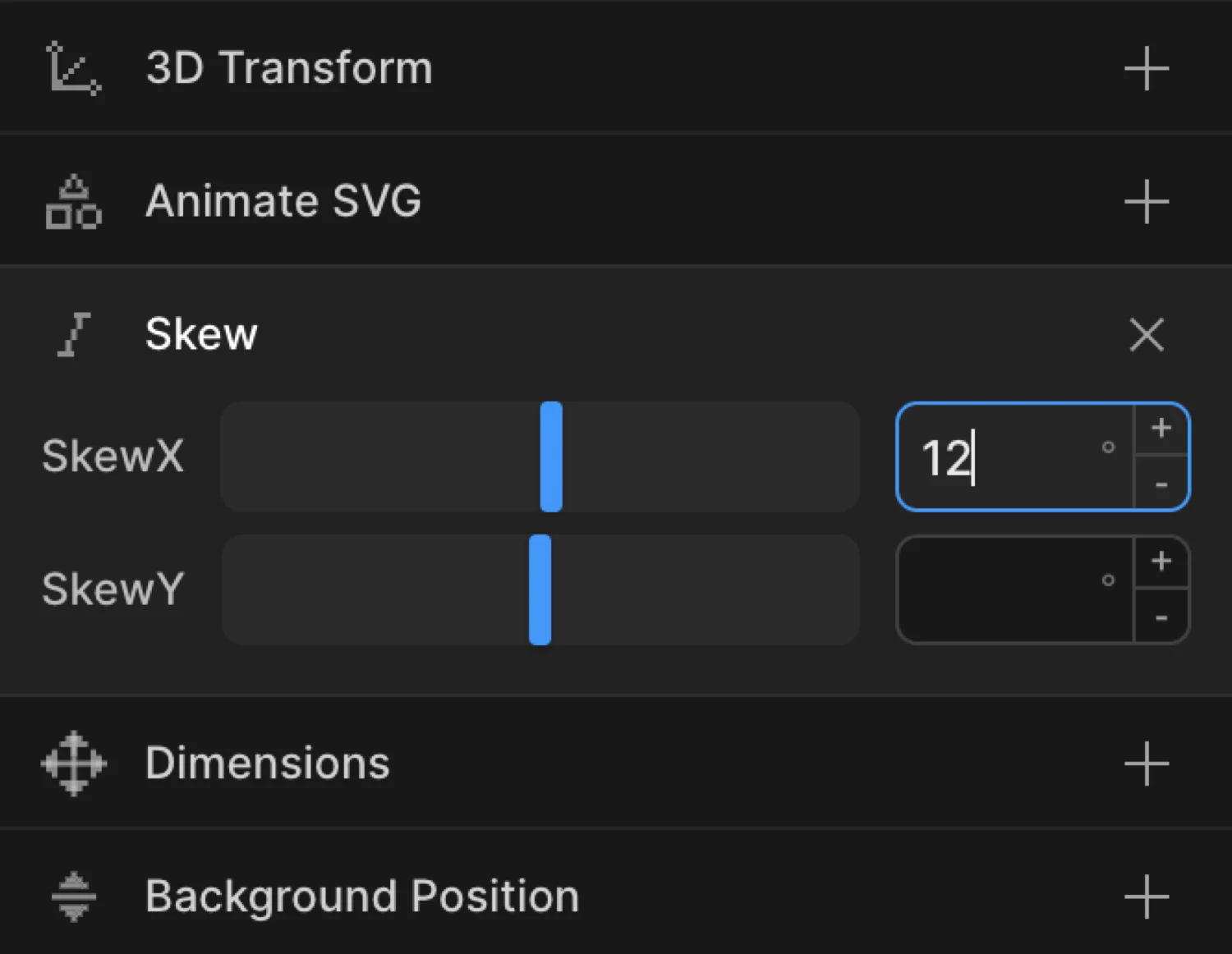
Set skewX to 12 in From mode to make an element appear to slide in at an angle and straighten as it settles. This reads as a confident, directional entrance — common in editorial and hero sections.
To mode — skew on interaction
In To mode, the values you set are the ending distortion. The element animates from its natural shape toward the skew angle you specify.
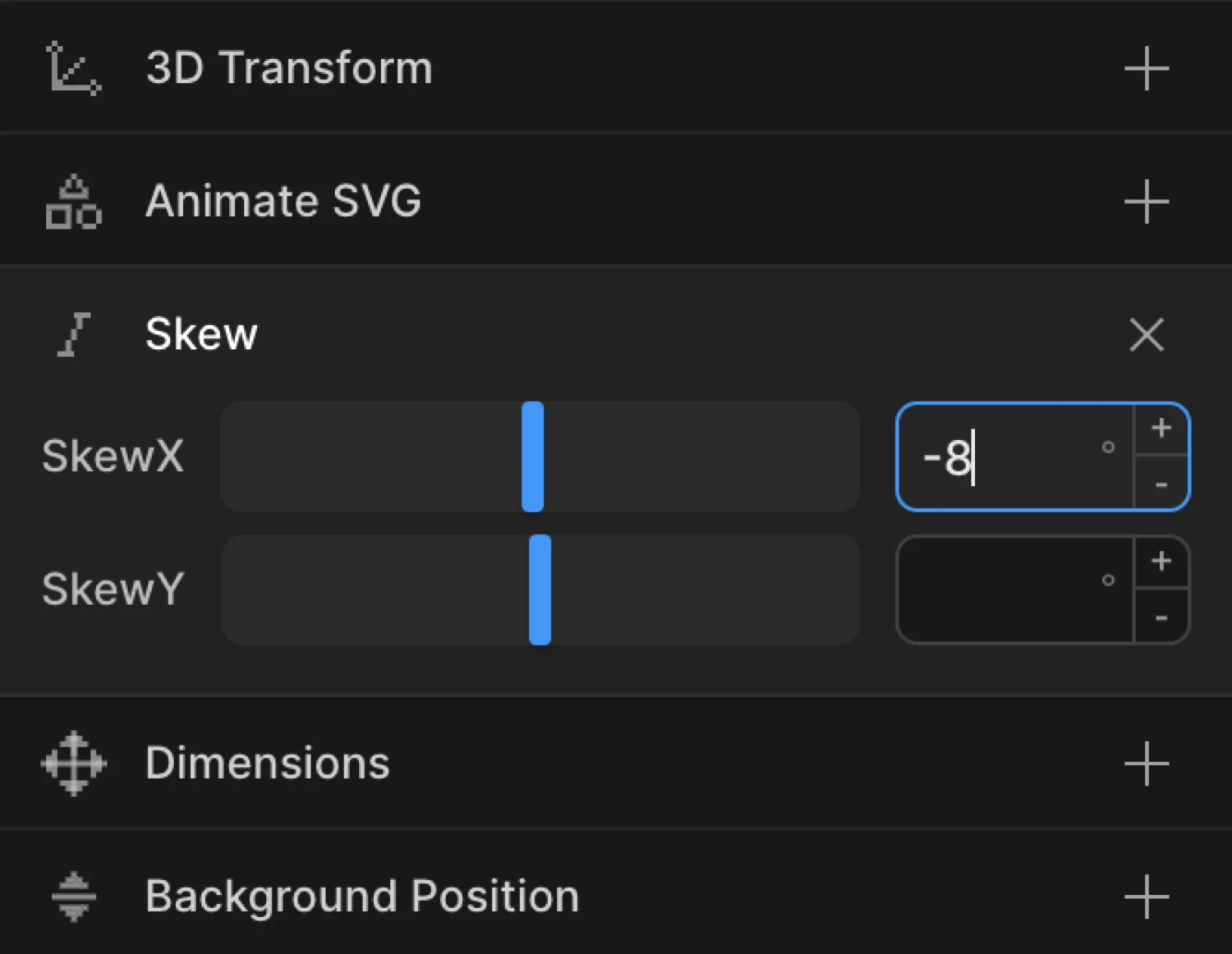
Set skewX to −8 in To mode paired with a Hover trigger to give a button or card a dynamic lean on hover. Enable Reverse on leave to return to the natural shape when the cursor exits.
The box uses from: { skewX: 18, opacity: 0 } — it starts tilted 18° and invisible, then straightens and fades in as it settles into its natural position.
SDK equivalent
Skew maps directly to the skewX and skewY properties in the SDK. Values are plain numbers representing degrees — no unit suffix needed.
import { Motion } from '@motion.page/sdk';

// Skewed entrance — straightens on play (From mode)
Motion('skew-in', '.card', {
  from: { skewX: 12 },
  duration: 0.6,
  ease: 'power2.out',
}).onScroll();
Combine with opacity and translate for a fuller entrance:
Motion('skew-reveal', '.hero-title', {
  from: { skewX: 10, opacity: 0, y: 30 },
  duration: 0.7,
  ease: 'power3.out',
}).onPageLoad();
Hover lean (To mode):
Motion('hover-lean', '.cta-button', {
  to: { skewX: -6 },
  duration: 0.25,
  ease: 'power2.out',
}).onHover({ each: true, onLeave: 'reverse' });
Both axes — diagonal warp effect:
// Animate from a diagonal warp to the element's natural shape
Motion('warp-in', '.panel', {
  from: { skewX: 8, skewY: 4, opacity: 0 },
  duration: 0.8,
  ease: 'power3.out',
}).onPageLoad();
For the full SDK reference, see Skew in the SDK.
Common patterns
Angled scroll reveal
Enable Skew on the From tab, set skewX to 10. Add Opacity at 0 on the same tab. Set the trigger to Scroll. Elements tilt in and straighten as they enter the viewport.
Motion('scroll-skew', '.feature-card', {
  from: { skewX: 10, opacity: 0 },
  duration: 0.65,
  ease: 'power2.out',
}).onScroll();
Directional slide with skew
Combine Translate and Skew in From mode so the element moves and straightens simultaneously. The skew reinforces the direction of travel and gives the motion a sense of momentum.
Motion('slide-skew', '.section-heading', {
  from: { x: -60, skewX: 12, opacity: 0 },
  duration: 0.7,
  ease: 'power3.out',
}).onScroll();
Hover lean on cards
Set the trigger to Hover, enable Skew on the To tab, set skewX to -5. Enable Reverse on leave. Cards lean slightly as the cursor enters and return to straight on exit.
Motion('card-lean', '.card', {
  to: { skewX: -5 },
  duration: 0.3,
  ease: 'power2.out',
}).onHover({ each: true, onLeave: 'reverse' });
Staggered skew list reveal
Enable Stagger alongside Skew and Opacity in From mode. Each list item straightens in sequence, creating a cascading wave of motion.
Motion('list-reveal', '.list-item', {
  from: { skewX: 8, opacity: 0 },
  duration: 0.5,
  ease: 'power2.out',
  stagger: { each: 0.08 },
}).onScroll();
Tips
skewXvsskewY—skewXis the more visually familiar axis for most UI animations;skewYalone can look unnatural unless you’re deliberately building a perspective-shift or italic effect.- Keep angles modest — values between
5°and20°read as dynamic; beyond30°the distortion becomes hard to read. - Skew is applied around the Transform Origin — adjusting the origin lets you control which part of the element stays anchored during distortion.
- Pair with Translate to reinforce directionality: a rightward slide (
x: 60) reads even more convincingly when paired with a slightskewXin the same direction. - Combine with Opacity — a skew alone on an entrance can look abrupt. Adding
opacity: 0to the From tab softens the start. - Double-click an input to reset the value.
Related
- From, To & Set — How the three animation modes work and when to use each
- Skew in the SDK — SDK reference for the
skewXandskewYproperties - Rotation — Rotate elements in 2D and 3D
- Translate — Move elements on X and Y axes
- Scale — Grow or shrink elements
- Transform Origin — Change the anchor point for transforms
- Ease — Control acceleration and deceleration