Mouse Movement
Animate elements based on cursor position with axis and distance modes, scoped selectors, and smooth transitions.
The Mouse Movement trigger links timeline progress directly to the cursor’s position inside a boundary. Use it for parallax effects, eye-tracking animations, card tilts, or any motion that follows the pointer.
Location
Left Panel → Trigger tab → Interactions → Mouse Movement
Select Mouse Movement from the trigger dropdown to reveal the mouse movement configuration panel.
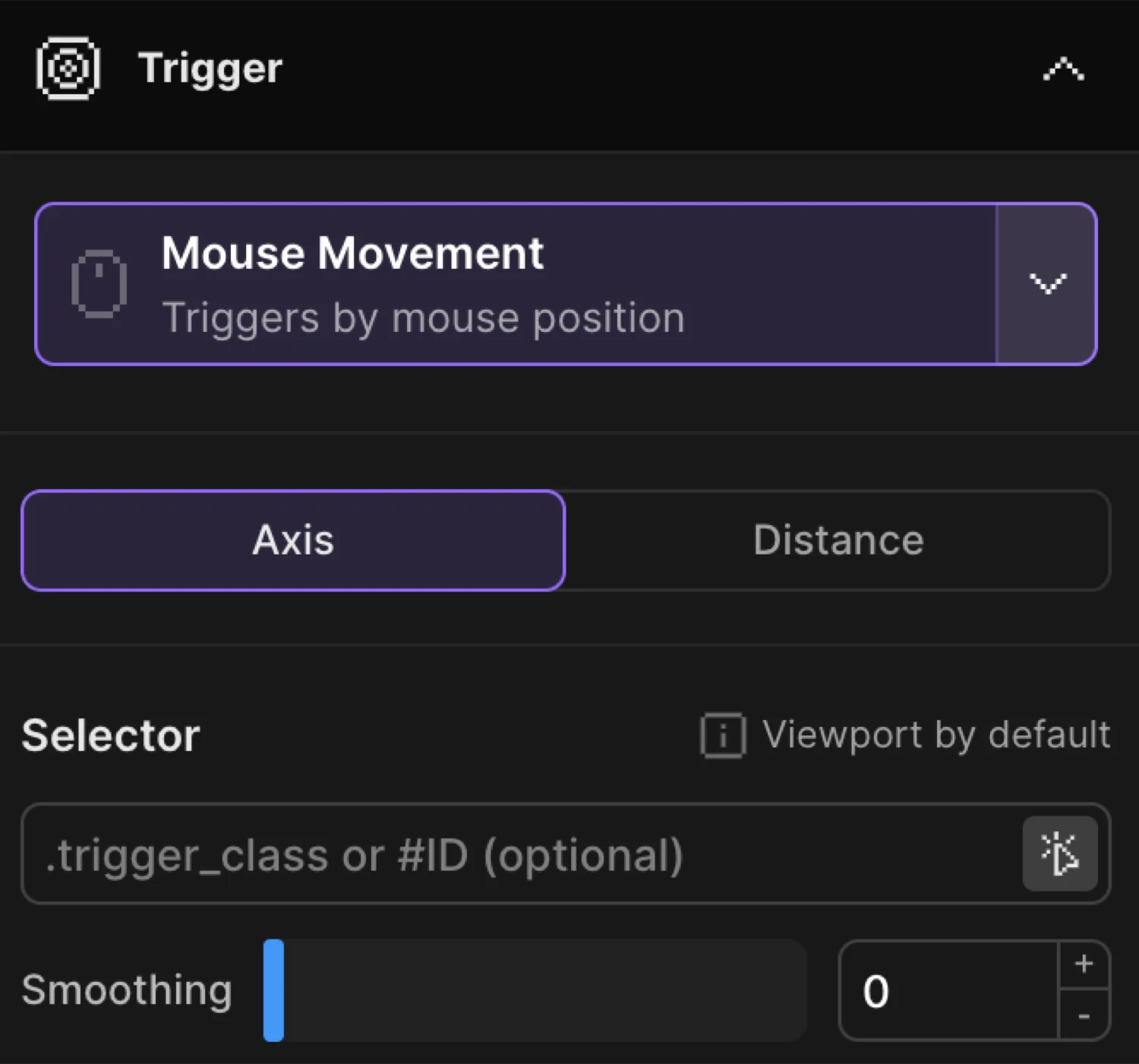
Selector
The Selector defines the boundary used to track the cursor.
A screen viewport is used as a default value, but you can specify an ID or a class which sets boundaries of the mouse triggered animation.
| Control | Default | Description |
|---|---|---|
| Selector input | (empty — uses viewport) | CSS selector for the boundary element. Accepts .class or #id. Leave empty to use the full viewport. |
When a selector is provided, cursor position is measured relative to that element’s bounding box rather than the full viewport. This lets you scope the effect to a card, a section, or any container.
Scoped mode
Scoped mode (tMMScoped) is available when the selector targets a class. It animates each matched element independently and treats the selector as a wrapper.
If selector is a class, you can use this option to animate every iteration of this class individually one-by-one. It also is a wrapper for animated elements, so only elements inside of the selector will be animated.
| Control | Default | Description |
|---|---|---|
| Scoped toggle | off | Each instance of the selector class tracks its own cursor independently. The selector also becomes the wrapper — only elements inside it are animated. |
Use scoped mode when you have a grid of cards and want each card to react to the cursor position within its own bounds, not the whole page.
Smooth enter and leave
These two options control how the timeline transitions when the cursor crosses into or out of the selector boundary.
This option ensures smooth transition to a timeline progress, based on the cursor position when entering the selector.
This option ensures smooth transition to a timeline progress, based on the cursor position when leaving the selector.
| Control | Default | Description |
|---|---|---|
| Smooth enter toggle | off | Smoothly interpolates the timeline from its current progress to match the cursor position on entry, rather than snapping. |
| Smooth leave toggle | off | Smoothly interpolates the timeline from its current progress to the Leave value when the cursor exits the boundary. |
Without smooth enter, the timeline jumps immediately to the cursor-mapped progress value on entry. Without smooth leave, the timeline snaps instantly to the leave value on exit.
Before-enter and leave values
These controls set fixed timeline progress values for the idle states — before the cursor enters the boundary and after it leaves.
Set a specific progress value of the timeline, before mouse enters the selector (0 is start, and 1 is end)
The timeline will return to a specific progress value, after mouse leaves the selector (0 is start, and 1 is end)
| Control | Default | Description |
|---|---|---|
| Before-enter value slider | 0 | Timeline progress held before the cursor enters the boundary. 0 = start of timeline, 1 = end. Range: 0–1. |
| Leave value slider | 0 | Timeline progress the animation returns to after the cursor exits. 0 = start, 1 = end. Range: 0–1. |
Setting the leave value to 0.5 keeps the animation at its midpoint when idle — useful for distance-mode effects that should appear “neutral” at rest rather than fully collapsed.
Animation mode
Two modes control how cursor position maps to timeline progress.
The axis mode animates objects along the full axis, so the start is on one edge of the viewport / selector, and the end is on the other edge.
The distance mode animates objects based on their distance from the center of the viewport / selector.
| Mode | SDK value | Mapping |
|---|---|---|
| Axis | "axis" | Timeline progress is mapped linearly from one edge of the boundary to the opposite edge along a chosen axis. Cursor at the left/top edge = 0, right/bottom edge = 1. |
| Distance | "distance" | Timeline progress is mapped by how far the cursor is from the center. Cursor at center = 0 (start), cursor at any edge = 1 (end). |
Axis mode works well for parallax and directional slides where you want a full sweep from one side to the other. Distance mode works well for glow effects, spotlights, and radial reveals that grow or shrink around the center.
In the builder this is a To animation with x: 120 driven by Mouse Movement in Axis mode, with the selector set to the container element.
SDK equivalent
The builder Mouse Movement trigger maps to .mouseMovement() in the SDK.
import { Motion } from "@motion.page/sdk";

// Parallax — elements shift based on cursor X position across the viewport
Motion("parallax", ".layer", {
  to: { x: 40, y: 20 },
  duration: 0.6,
}).mouseMovement();
With a scoped selector — each card tilts independently:
Motion("card-tilt", ".card-inner", {
  to: { rotateX: 8, rotateY: 8 },
  duration: 0.4,
}).mouseMovement({
  selector: ".card",
  scoped: true,
  smoothLeave: true,
  leaveValue: 0.5,
});
Distance mode — glow grows from center outward:
Motion("glow", ".glow-ring", {
  to: { scale: 1.3, opacity: 1 },
  duration: 0.5,
}).mouseMovement({ mode: "distance" });
For the full SDK reference see Mouse Movement in the SDK.
Common patterns
Parallax hero
Set a To animation with a modest x and y translate on a background layer. Leave the selector empty so the full viewport is used. Keep the values small (e.g. x: 20, y: 10) for a subtle depth effect that does not distract from content.
Card tilt effect
Enable Scoped mode with a .card selector. Animate rotateX and rotateY on .card-inner. Each card tilts toward the cursor within its own bounds. Set a Leave value of 0.5 and enable Smooth leave so the card returns to a neutral flat position instead of snapping to one corner.
Cursor-following spotlight
Use Distance mode with a radial-gradient background or a masked highlight element. At the center (distance 0) the element is fully visible; at the edges (distance 1) it fades out — giving the impression of a spotlight that follows the pointer.
Distance-based glow
Animate box-shadow or a pseudo-element’s opacity in Distance mode with a Leave value of 0. The glow pulses outward as the cursor moves away from center and returns to baseline on exit.
Related
- Mouse Movement in the SDK — Full SDK reference for
.mouseMovement() - Hover Trigger — Trigger animations on pointer enter and leave
- Click Trigger — Trigger animations on element click
- From, To and Set — Configure what the animation does