Page Exit
Run animations when the user navigates away from the page using the Page Exit trigger.
Page Exit plays a timeline when the user clicks a link to navigate away from the page. The animation runs before the browser navigates, so you can create smooth page transitions that play out fully before the next page loads.
Location
Left Panel → Trigger tab → Page Events → Page Exit
Open the Trigger tab in the Left Panel, then select Page Exit from the Page Events section.
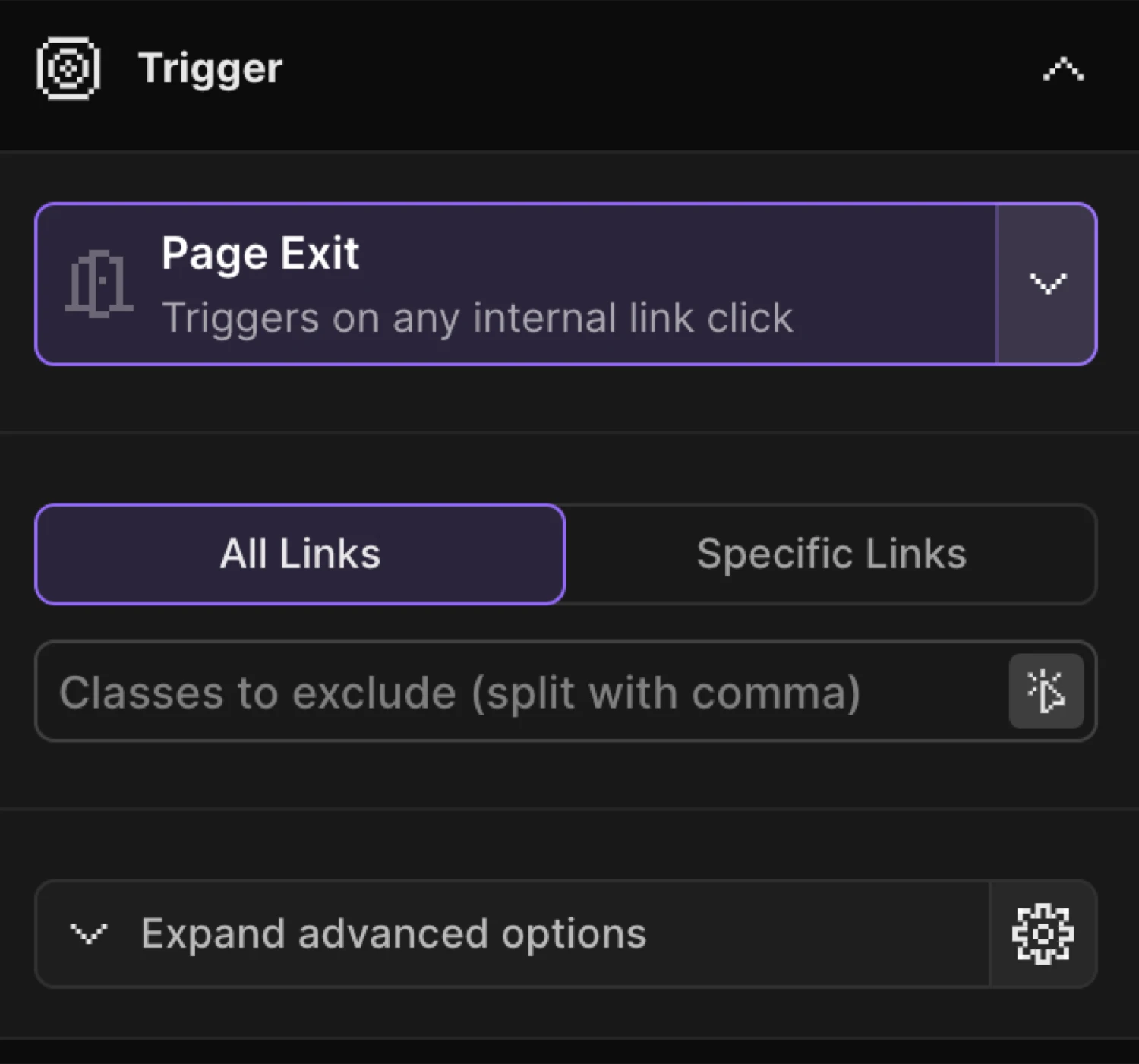
Use the Page Events trigger to play the timeline when the page loads or when the user exits the page.
Ignore exit classes
The Ignore exit classes control (tIgnoreExit) lets you exclude specific links from triggering the exit animation. Any link that carries one of the listed classes will navigate immediately — the exit animation is skipped entirely for those clicks.
You can add one or multiple classes that will ignore the exit trigger.
| Control | Default | Description |
|---|---|---|
| Ignore exit classes input | (empty) | One or more CSS classes (without the leading dot). Links with these classes bypass the exit animation. |
Targeting a parent element
Sometimes the class you want to match lives on a parent element rather than on the link itself. Use the #id.class shorthand to walk up the DOM and check a parent instead.
As the ignored class needs to be present on the <a> element, you can use a specific format to target any parent element with an ignored class.
#my-menu.no-animationwill look up any parent (of the clicked <a> element) element with an ID ofmy-menuand a class ofno-animation.
For example, entering #my-menu.no-animation tells the trigger to look for a parent that has the ID my-menu and the class no-animation. If found, the exit animation is skipped for that click.
Run on selector
The Run on selector control (tRunOnSelector) restricts the exit animation to fire only when links matching specific CSS selectors are clicked. By default, any link click triggers the animation — this control narrows that to a targeted subset.
You can add one or multiple selectors that will trigger exit animation.
| Control | Default | Description |
|---|---|---|
| Run on selector input | (empty) | One or more CSS selectors. Only clicks on matching links fire the exit animation. Leave empty to match all links. |
Use this when a page contains links that should navigate instantly — for example, anchor links that jump within the same page, or external links that open in a new tab — while still playing the exit animation for internal page navigation.
SDK equivalent
The builder Page Exit trigger maps to .pageExit() in the SDK.
import { Motion } from "@motion.page/sdk";

// Fade out the page on exit
Motion("exit", "body", {
  to: { opacity: 0 },
  duration: 0.4,
  ease: "power2.in",
}).pageExit();
With ignore classes — skip the animation for certain links:
Motion("exit", "body", {
  to: { opacity: 0 },
  duration: 0.4,
}).pageExit({
  ignoreExit: [".no-transition", "#my-menu.no-animation"],
});
With run on selector — only trigger on specific links:
Motion("exit", ".page-content", {
  to: { opacity: 0, y: -20 },
  duration: 0.35,
}).pageExit({
  runOn: [".nav-link"],
});
Common patterns
Page transition fade
Animate body or .page-wrapper from full opacity to 0 with a short duration (0.3–0.5s) and a ease-in curve. Pair this with a matching Page Load entrance animation (opacity: 0 → 1) so every navigation feels seamless in both directions.
Slide-out with selective links
Use Run on selector to target only .internal-link anchors. Anchor links and external links are left untouched and navigate immediately. The exit slide (y: -30, opacity: 0) fires only for genuine page-to-page transitions.
Combined Page Load and Page Exit transitions
Pair Page Exit with a Page Load timeline to build a full transition loop:
import { Motion } from "@motion.page/sdk";

// Entrance — plays when the new page loads
Motion("enter", ".page-wrap", {
  from: { opacity: 0, y: 20 },
  duration: 0.45,
  ease: "power2.out",
}).onPageLoad();

// Exit — plays before navigating away
Motion("exit", ".page-wrap", {
  to: { opacity: 0, y: -20 },
  duration: 0.35,
  ease: "power2.in",
}).pageExit();
Excluding menu links from the exit
Add no-exit to any navigation links that should not fire the animation — for example, links inside a dropdown that close the menu without leaving the page. Enter no-exit in the Ignore exit classes field.
Related
- Page Exit — SDK reference — Full
.pageExit()API and options - Page Load Trigger — Auto-play animations when the page loads
- Click Trigger — Trigger animations on element click
- From, To & Set — Configure what the animation does