Image Sequence
Play frame-by-frame image sequences on a canvas element synced to your timeline.
Image Sequence renders a series of numbered image frames onto a <canvas> element, driven by your timeline’s progress. As a trigger (scroll, click, hover) advances the timeline, the canvas draws the corresponding frame — producing smooth, frame-accurate animations from pre-rendered imagery. Commonly used for scroll-driven product spins, cinematic reveals, and 3D object rotations.
Play a sequence of images on the trigger.
Location
Left Panel → Animation tab → Visual Properties → Image Sequence
Image Sequence is a visual mapping property and also operates at the root level — it is direction-agnostic, meaning it applies regardless of which From, To, or Set tab is active.
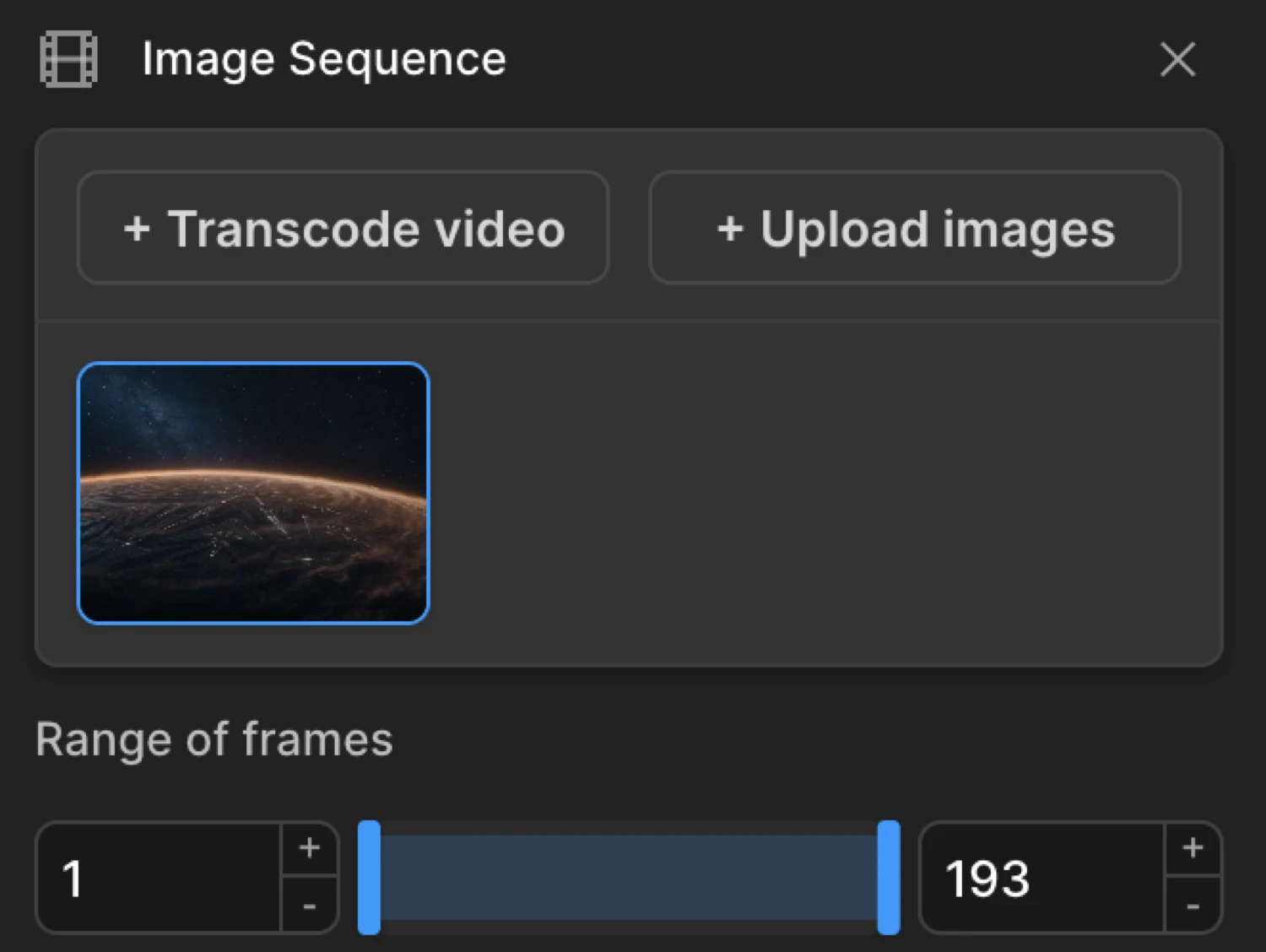
Getting Images onto the Canvas
Before configuring playback, you need to supply the image frames. There are two methods:
Upload
Click the Upload button to upload a sequence of pre-prepared image files. Files should be numbered sequentially — e.g. 0001.jpg, 0002.jpg, 0003.jpg — so the sequence player can construct the correct frame order.
Upload a sequence of images.
Transcode from Video
Click the Transcode button to extract frames directly from a video file using the built-in transcoding tool. The tool converts your video into a numbered image sequence in the browser.
Use our transcoding tool to create an image sequence directly from a video.
Requirements: Transcoding is available only in Chrome and only on sites with SSL (HTTPS) enabled. On other browsers or non-SSL sites, the Transcode button is disabled.
The transcoding feature is currently available only on the Chrome browser and on sites with SSL enabled.
Gallery
After uploading, all your image sequences are accessible via the Gallery button. From here you can preview or remove any saved sequence.
Access all your uploaded image sequences from this point. You have the option to view or remove them as needed.
Controls
| Control | Type | Default | Description |
|---|---|---|---|
| Canvas Selector | CSS selector | — | The CSS selector for the <canvas> element on your page that will render the frames. |
| Image Fit | Dropdown | Cover | How each frame is drawn relative to the canvas bounds — Cover, Contain, or Fill. |
| Frame Range | Range inputs | Full range | Restrict playback to a sub-range of the total frames. Useful when different scroll sections each drive a different chapter of the same sequence. |
| Skip Frames | Dropdown | 0 | Skip every Nth frame to reduce the number of images loaded. 0 = disabled; values from 2–20 halve or further reduce the total frame count to improve performance. |
| Reverse | Toggle | Off | Run the sequence in the opposite direction — the last frame plays first and progress plays backward. |
| Intersection Observer | Toggle | Off | Defer image loading until the canvas scrolls into the viewport. Non-priority frames will not be downloaded until the canvas is visible. |
| IO Offset | Number input | 0 | Viewport offset (%) used by the Intersection Observer. Positive values start loading before the canvas is fully in view. |
| When Disabled | Multi-select | (none) | Conditions under which the sequence is disabled. If any selected condition is met, the fallback mode is applied instead. |
| Fallback Mode | Dropdown | Display first image | The backup strategy applied when a “When Disabled” condition is met or a breakpoint rule disables the timeline. |
| Disable Timeline | Toggle | Off | When any disable condition or breakpoint setting is met, disables the entire timeline (trigger + all nodes) and applies the fallback. |
| Debug Mode | Toggle | Off | Logs frame loading errors and diagnostic information to the browser console. Enable this when troubleshooting a sequence that isn’t playing correctly. |
Image Fit Options
Controls how each frame image is drawn relative to the canvas element’s dimensions:
| Value | Description |
|---|---|
| Cover | Fills the entire canvas, cropping edges when the image and canvas aspect ratios differ. No stretching. Default and recommended for most sequences. |
| Contain | Scales the full image to fit within the canvas, leaving transparent bars on the sides or top/bottom. Requires an alpha-capable format (png, webp, avif). |
| Fill | Stretches the image to exactly match the canvas width and height, ignoring the original aspect ratio. |
Cover: Fills the entire size, allowing for overlap but without any stretching of the image.
Note on Contain: Using Contain with
jpgfiles produces a black background behind the letterboxed image. Switch topng,webp, oraviffor proper transparency.
Disable Conditions
The When Disabled dropdown accepts multiple selections. The sequence is disabled if any selected condition is true at page load. All ten conditions available:
| Value | When it triggers |
|---|---|
Slow Connection | Detected download speed is below ~1.2 Mbps, or the first frame took longer than 600 ms to load |
Chrome | Visitor is using Google Chrome |
Safari | Visitor is using Safari (desktop) |
Firefox | Visitor is using Firefox |
Edge | Visitor is using Microsoft Edge |
Internet Explorer | Visitor is using Internet Explorer |
Touch Devices | Device reports at least one touch point |
Mobile | Mobile user-agent detected |
Desktop | Desktop (non-mobile) user-agent detected |
Safari Mobile | Visitor is using Safari on iOS |
Turn off the image sequence under certain conditions and initiate the fallback action.
Fallback Modes
When a disable condition is met, Fallback Mode determines what the canvas shows:
| Value | Behaviour |
|---|---|
Display first image | Replaces the canvas with a static <img> showing the first frame. Default — ensures the canvas area is never blank. |
Display last image | Replaces the canvas with a static <img> showing the last frame. |
Remove canvas | Removes the <canvas> element from the DOM entirely. |
Empty canvas | Leaves the canvas in place but does not draw anything — canvas remains blank. |
None | Takes no action. The canvas stays as-is with no fallback content. |
Opt for a backup strategy that will be implemented when any ‘disabled’ condition or breakpoint settings are met.
Performance Tips
Image sequences are asset-heavy. Apply these strategies to keep load times and memory usage under control:
- Skip Frames — Setting Skip Frames to
2loads every other frame, halving the total HTTP requests while keeping motion smooth at typical scroll speeds. Use higher values (3–5) for sequences with very high frame counts. - Intersection Observer — Enable for any sequence that starts below the fold. Non-priority frames will not be fetched until the canvas enters the viewport, keeping initial page load fast.
- IO Offset — Set a positive IO Offset (e.g.
20–50) to begin preloading frames slightly before the canvas is fully visible, preventing a loading gap when the user scrolls fast. - DPR — The default DPR of
1.25sharpens the canvas slightly above native resolution. Lower it to1.0on mobile via Breakpoints to reduce the canvas buffer size and memory usage. - Format — Use
jpgfor fully opaque sequences — it has no alpha overhead and produces the smallest file sizes. Only switch topngorwebpwhen transparency is needed (Image Fit: Contain, or frames with transparent backgrounds). - Frame count — 60–180 frames is sufficient for most product spins and reveals. Higher counts rarely improve perceived smoothness and significantly increase total asset weight.
Common Patterns
Scroll-synced product reveal
The most common pattern: pin a section and scrub a 360° product rotation or cinematic reveal as the user scrolls through it.
In the builder:
- Add a
<canvas>element to your page with a clear selector, e.g.canvas.product-spin. - Set the Canvas Selector to
canvas.product-spin. - Upload your numbered frame sequence or transcode from video.
- Set Image Fit to Cover.
- Enable the Scroll Trigger on the timeline, set Scrub on, and extend the trigger’s End offset to give users enough scroll distance to explore all frames comfortably.
- Enable Intersection Observer if the canvas starts below the fold.
// SDK equivalent
import { Motion } from "@motion.page/sdk";

Motion("product-spin", "canvas.product-spin", {
  imageSequence: {
    canvas: "canvas.product-spin",
    urls: "/images/product-360/",
    ext: "jpg",
    totalFrames: 120,
    numPadding: 4,
    dpr: 1.25,
    isIntersectionObserver: true,
  },
}).onScroll({
  trigger: ".product-section",
  start: "top top",
  end: "+=400%",
  scrub: 1,
  pin: true,
});
Video-to-sequence workflow
Use the built-in Transcode tool to go from a video file to a deployable image sequence without leaving the builder:
- Open Image Sequence in the Left Panel.
- Click Transcode (Chrome + HTTPS required).
- Drop in your video file and select output format and quality.
- Export — the tool generates numbered frames and adds them to your Gallery.
- Select the sequence from the Gallery and configure playback as normal.
This avoids manual FFmpeg conversion and keeps assets managed directly inside Motion.page.
SDK Equivalent
Image Sequence maps directly to the imageSequence root-level property in the SDK config. All builder controls correspond to SDK options:
| Builder control | SDK option |
|---|---|
| Canvas Selector | canvas |
| Image Fit | imageFit (0 cover, 1 contain, 2 fill) |
| Frame Range | frames (0–1 normalized tuple) |
| Skip Frames | skipFrames |
| Reverse | isReverse |
| Intersection Observer | isIntersectionObserver |
| IO Offset | intersectionObserverMargin |
| When Disabled | whenDisabled (string array) |
| Fallback Mode | fallbackMode |
| Debug Mode | isDebug |
For the full SDK reference including responsive image paths (smallImagesRoot, mediumImagesRoot) and multiple sequence chapters, see Image Sequence in the SDK.
Related
- Scroll Trigger — The primary trigger for scrubbing image sequences via scroll progress
- Breakpoints — Disable the sequence at specific viewport widths and apply fallback behaviour
- Image Sequence in the SDK — Full SDK reference with responsive images, frame chapters, and all options