Translate
Move elements with the translate controls — X, Y, units.
Translate moves an element along the X and Y axes (and optionally Z). It is the primary tool for slide-in entrances, hover lifts, parallax offsets, and any animation that repositions an element without affecting document flow.
Where to find it
Left Panel → Animation tab → Translate
Enable the Translate toggle to expand the controls. The section shows three numeric inputs — X, Y, and Z — each with an independent unit selector.
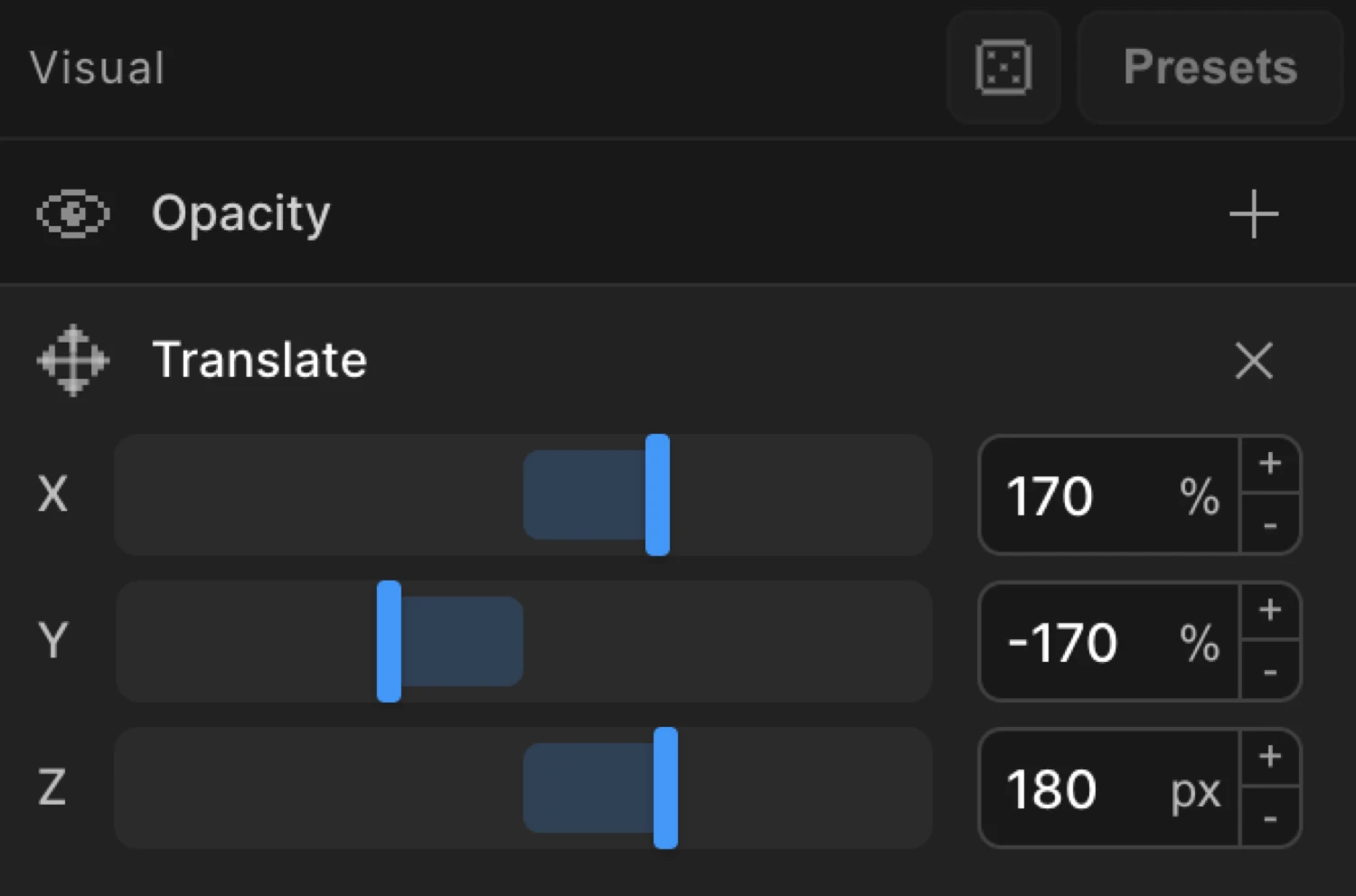
Controls
| Control | Description |
|---|---|
| X | Horizontal movement. Positive = right, negative = left. |
| Y | Vertical movement. Positive = down, negative = up. |
| Z | Depth movement on the Z-axis. Requires a 3D transform context. |
| Unit selector | Click the unit label to cycle through available units. |
Each axis has its own unit selector. Clicking the unit label cycles through the available options:
| Unit | Description |
|---|---|
% | Percentage of the element’s own size (default) |
px | Absolute pixels |
em | Relative to the element’s font size |
rem | Relative to the root font size |
vw | Percentage of viewport width |
vh | Percentage of viewport height |
vmin | Percentage of the smaller viewport dimension |
vmax | Percentage of the larger viewport dimension |
The slider range is −500 to 500. Type directly into the input for values outside that range.
From mode — entrance animations
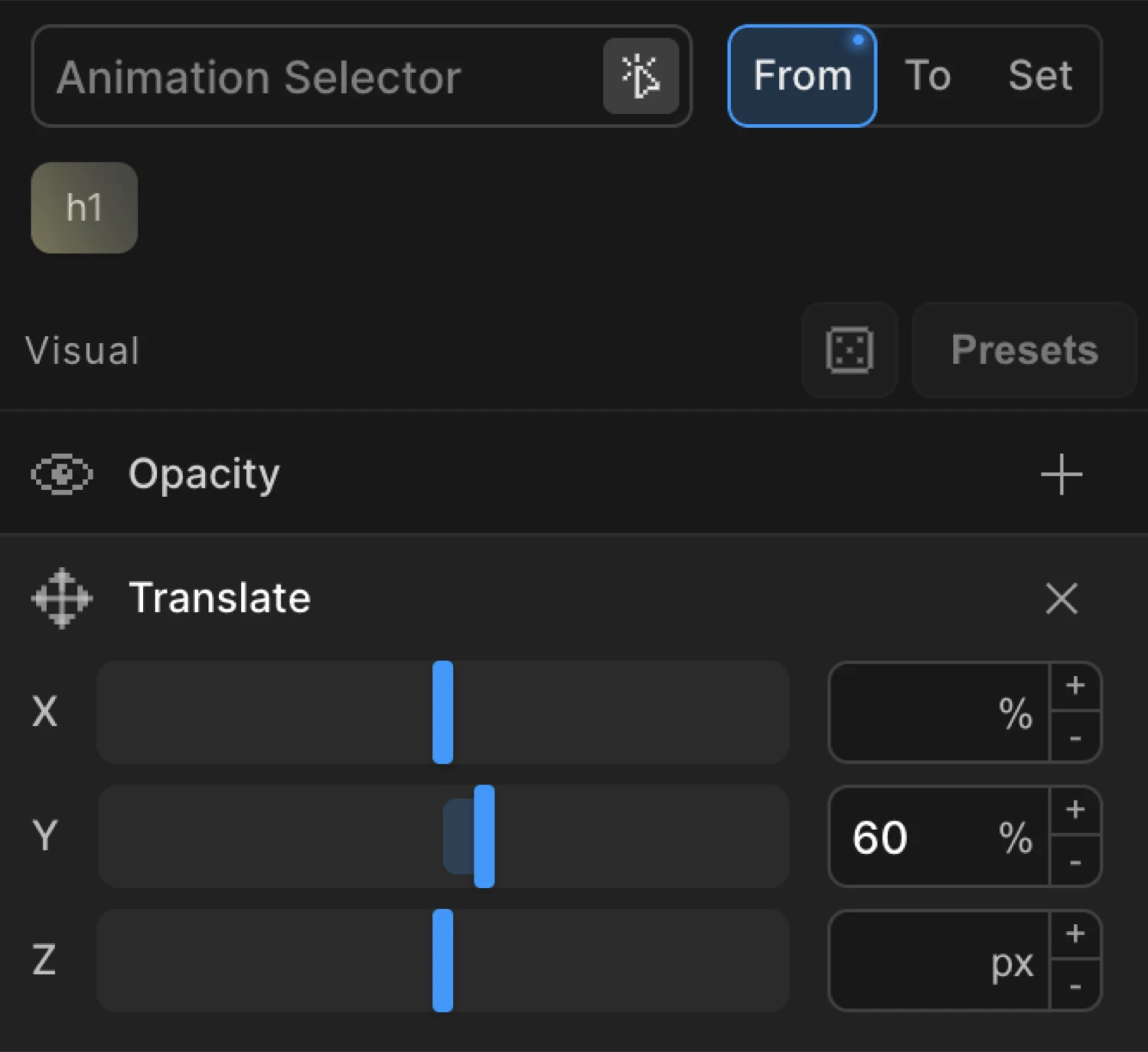
In From mode, the values you set are the starting position. The element animates from that offset toward its natural CSS position.
Set y to 60 in From to make an element slide up from 60 pixels below its resting place. Set x to -100% to slide in from the left.
To mode — exit and hover effects
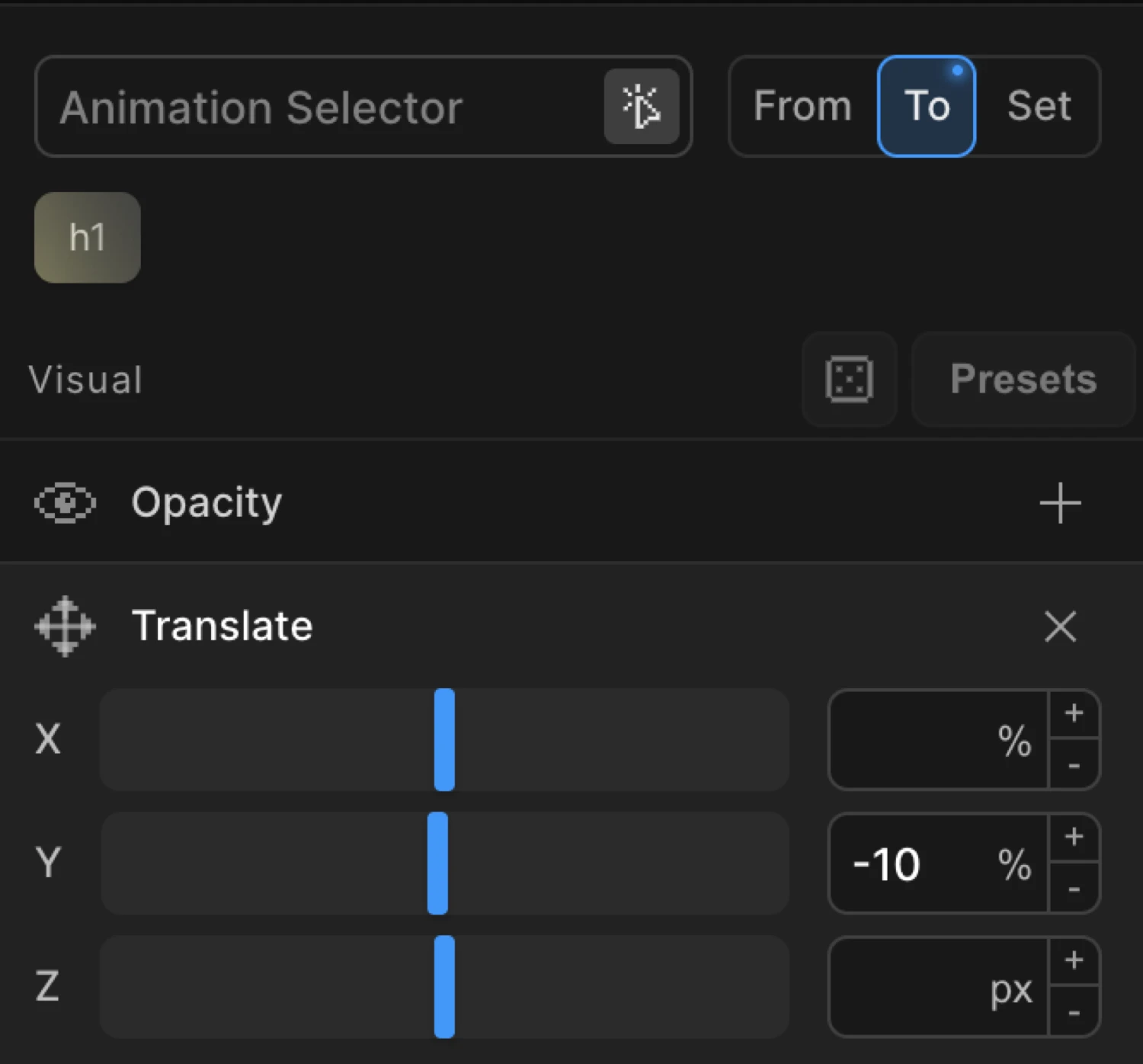
In To mode, the values you set are the ending position. The element animates from its natural CSS position toward the offset you specify.
Set y to -10 in To for a hover lift effect — the element moves up 10 units when the animation plays. Combine with a Hover trigger and Reverse on leave to create a smooth hover interaction.
This effect uses from: { opacity: 0, y: 48 } — the card starts transparent and 48 px below its resting position, then animates to its natural state.
SDK equivalent
Translate maps directly to the x, y, and z properties in the SDK config. Units are appended as a string suffix.
import { Motion } from '@motion.page/sdk';

// Slide up from below (From mode)
Motion('hero-reveal', '.hero-card', {
  from: { opacity: 0, y: 48 },
  duration: 0.65,
  ease: 'power3.out',
}).onPageLoad();

// Hover lift (To mode)
Motion('card-hover', '.card', {
  to: { y: -10 },
  duration: 0.3,
  ease: 'power2.out',
}).onHover({ each: true, onLeave: 'reverse' });

// Percentage units — slide in from the left
Motion('slide-left', '.panel', {
  from: { x: '-100%' },
  duration: 0.5,
  ease: 'power2.out',
}).onPageLoad();

// Viewport units — parallax strip
Motion('parallax', '.bg-image', {
  from: { y: '-10vh' },
  to:   { y: '10vh' },
  duration: 1,
}).onScroll({ scrub: true });
When using a non-px unit, pass the value as a string with the unit appended: '-100%', '10vw', '2rem'.
Common patterns
Slide in from the bottom
from: { y: 60 } // element starts 60 px below, slides up to natural positionSlide in from the left
from: { x: '-100%' } // starts fully off-screen to the leftHorizontal slide
from: { x: -40, opacity: 0 } // slide in from the left while fading inHover lift
to: { y: -8 } // pair with Hover trigger + Reverse on leaveParallax offset
from: { y: -40 },
to:   { y: 40 }    // scrub with scroll — element travels 80 px as page scrolls
Staggered list reveal
Enable Stagger alongside Translate in From mode. Each list item slides up in sequence rather than all at once.
Tips
- Double-click a slider to reset the value to empty.
- Positive Y = down, negative Y = up. This matches CSS transform convention, not mathematical Y-axis convention.
- The
%unit is relative to the element’s own dimensions, not the parent.x: 100%moves the element exactly one element-width to the right. - Translate does not affect document flow — surrounding elements stay in place regardless of where the animated element is moved.
- Combine Translate with Opacity for the most common entrance pattern:
from: { opacity: 0, y: 40 }.
Related
- From, To & Set — How the three modes work and when to use each
- Opacity — Fade in/out, often combined with Translate
- Scale — Grow or shrink elements
- Transform Origin — Change the anchor point for transforms
- Stagger — Sequence multiple translated elements
- Ease — Control the motion curve